
📱Follow Up Boss & Blutext Texting
This section will walk you through how to use Blutext for one-off texts, and automations, that can be attached to Lead Flows.
Important Details
When reviewing Blutext texts in Follow Up Boss, the Note timestamp indicates when Follow Up Boss sent the text to the Blutext queue. The Blutext message will be sent within business hours set up via iPhone Shortcuts or Android Tasky. You will see the actual time sent in your iPhone or Android device messages.
If you want to track Blutext use on contacts in Follow Up Boss, you will need to manually add a #Blutext tag to Follow Up Boss.
All Blutext Notes must begin with a specific Blutext token, in lower-case, to trigger the communication. You will see examples of these within Blutext Token Matrix and how to sections below.
If you need Blutext for teams, please email support@blutext.com. We will set up a time to meet to learn about what you're seeking, and get you set up.
Blutext Token Matrix
*Note: Blutext Tokens are case sensitive and should be in lower-case only. If you are combining Tokens, separate with each bracket shown below. Do not add spaces.
Token | Definition |
[blutext] | Use this Token at the beginning of all Blutext text communications created in Notes. |
[blutext][dnc] | Blutext has DNC off as default. To turn DNC ON, use the Blutext Token [DNC] Click here to learn more about the DNC feature. |
[blutext][manual] | Use the tokens [blutext] and [manual] to turn on manual mode. The text will be sent to your phone, and you'll need to tap to send it. Click here to learn more about Manual Mode. |
[blutext][manual][dnc] | Use the tokens [blutext][manual][dnc] to turn on manual mode, and turn ON checking against the DNC list. |
How to Create an FUB Automation With Blutext
This section explains how to set up Blutext Text in a Follow Up Boss Automation sequence connected to a specific Lead Flow.
To learn more about Automations, click here to access the FUB help center.
Step 1 Log in at Follow Up Boss
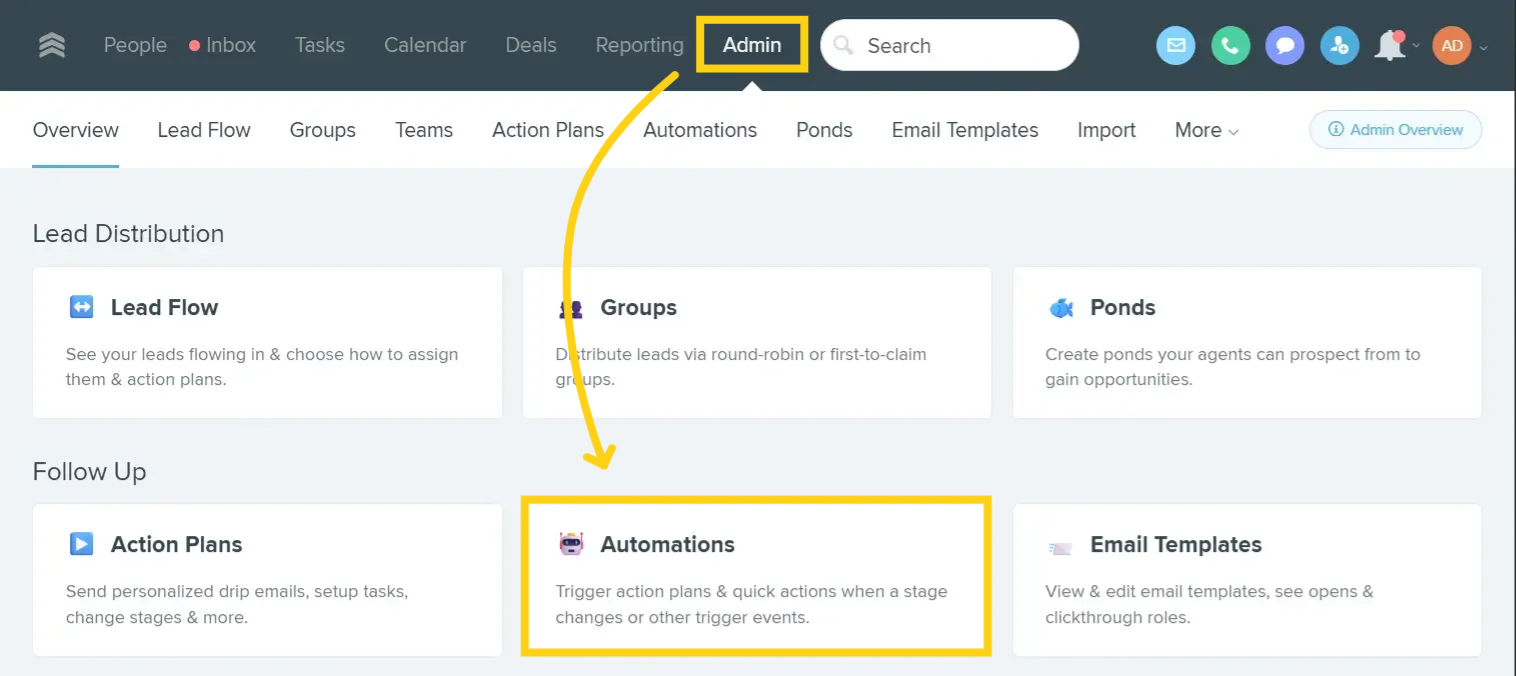
Log in to your account with Follow Up Boss, then click to select "Admin" across the top of the dashboard, then click on "Automations" across the top options, or tile below.
Step 2 Create New or Open Existing Automation
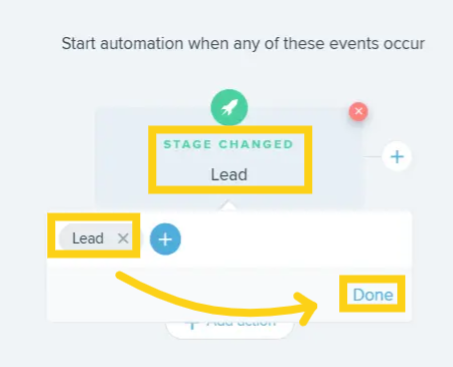
Create the automation trigger first. After you have completed that action, you will define what action will take place next.
Click "State Changed," then click to select Status Change you want," then "Done."
In this example, I selected "Lead" as the Stage Changed.
Step 3 +Add Action
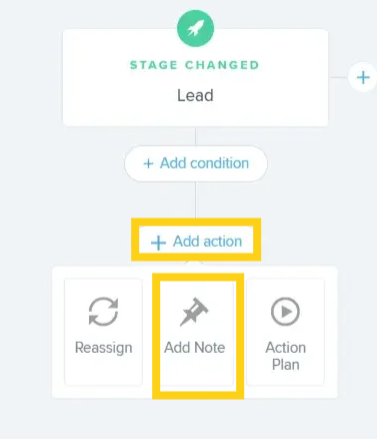
Click the blue "+Add Action" button then "Add Note."
Step 4 +Add Action Note
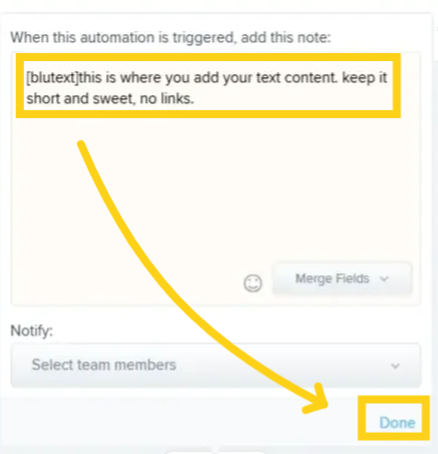
Type the Blutext Token, then add your text message into the "Note" field. Keep it short and sweet.
Remember, this is to engage in communication and start a conversation.
Click here to review the Token matrix.
Click "Done" when you're done with the message and settings.
Complete building or editing your Automation, click "Save" at the top right, and enable it if you want to go live with the Automation.
Once you have created or updated the Automation, you can apply it to a Lead Flow. To learn more about Lead Flows and Follow Up Boss, click here.
Note: When reviewing Blutext texts in Follow Up Boss, the Note timestamp indicates when Follow Up Boss sent the text to the Blutext queue. The Blutext message will be sent within business hours set up via iPhone Shortcuts or Android Tasky . You will see the actual time sent in your iPhone or Android device messages.
How to Send a Blutext Note on a Lead Profile
Need to send a one-off Blutext Text Message to a Lead Profile? No problem.
Step 1 Lead Profile & Create Note
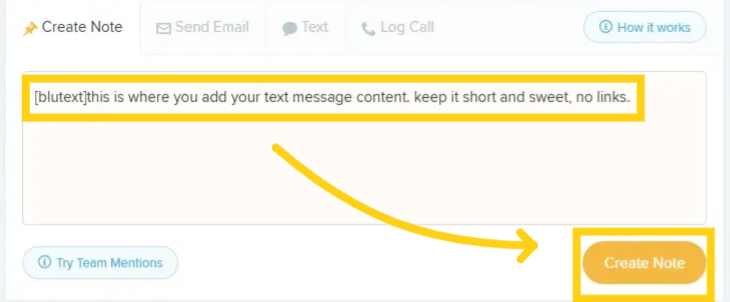
Open a Lead Profile, and place your cursor in the "Create Note" field (it opens by default.) Type the Blutext Token into the note first. Add your text message into the "Create Note" field then click "Create Note."
Remember to be short and sweet.
This is a method you can use to ignite a conversation.
Click here to review the Token matrix.
Step 2 Review Sent Note
The Note will refresh and show either on the All Activity or Notes filters.
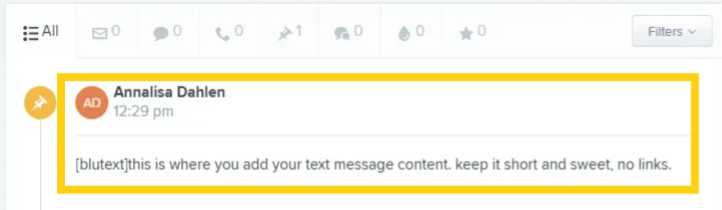
Note: When reviewing Blutext texts in Follow Up Boss, the Note timestamp indicates when Follow Up Boss sent the text to the Blutext queue. The Blutext message will be sent within business hours set up via iPhone Shortcuts or Android Tasky . You will see the actual time sent in your iPhone or Android device messages.