
Android Blutext Installation
Welcome to Blutext! Thank you for choosing us for your texting needs. Follow the steps below to set up your Blutext account on your Android device.
If you haven't signed up for the two-week trial, click here to do so first.
How To Install Blutext On Your Android
Step 1 Android & Blutext Welcome Email
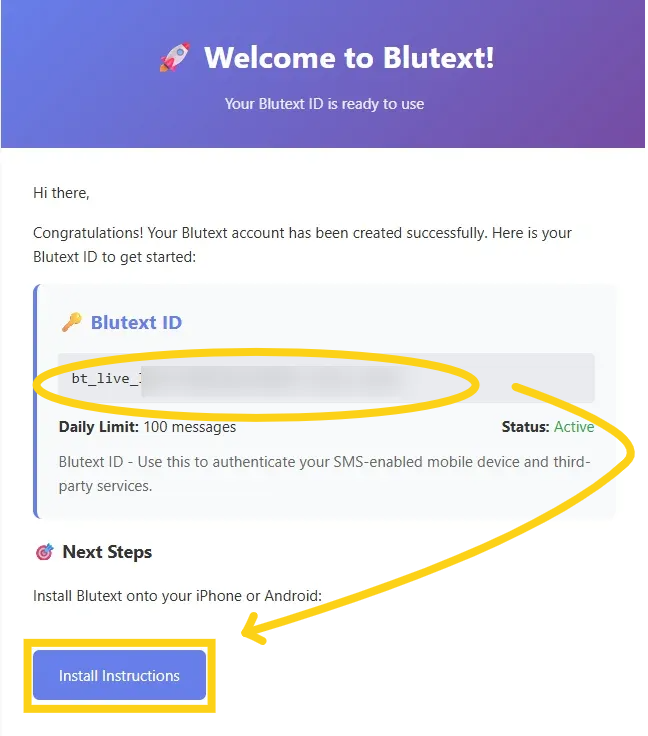
On your Android device, open the email app linked to your Blutext account, find the "Your Blutext API Keys - Ready to Use! 🚀" email to view your unique Blutext ID, and click the blue "Install Instructions" button.
Step 2 Copy Blutext ID
Tap on the "Tap to Copy Blutext ID to Clipboard" button.

Step 3 Android Install Link
Tap the "Android Install Link" button.

Step 4 Select the Tasker App
Before you tap on an app to install, be sure to read the information below, then proceed to Step 5.
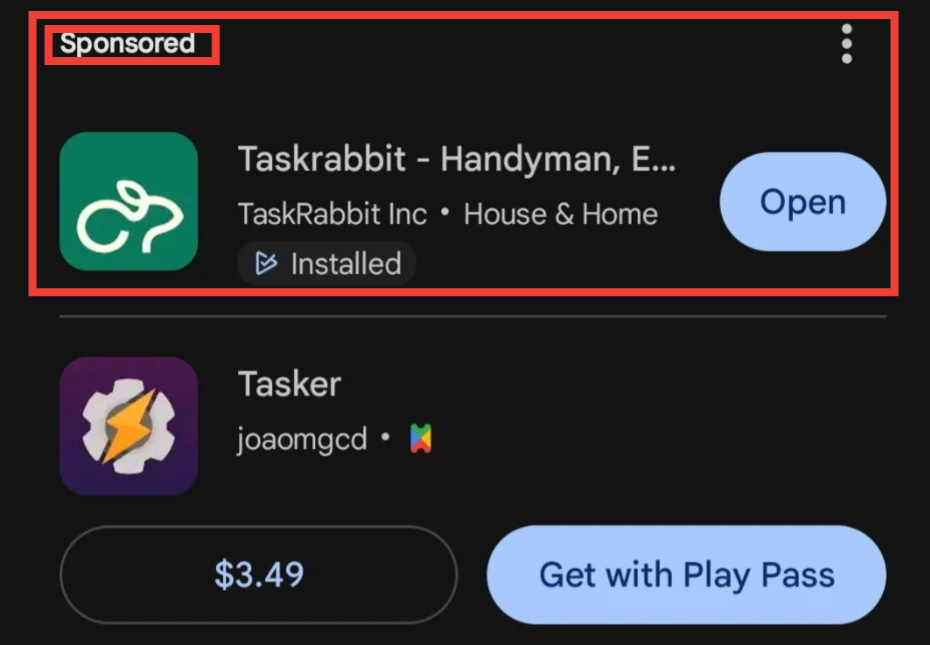
Do NOT tap the first option at the top of the phone. These are sponsored ads for other apps.
|
|
Step 5 Install Tasker App
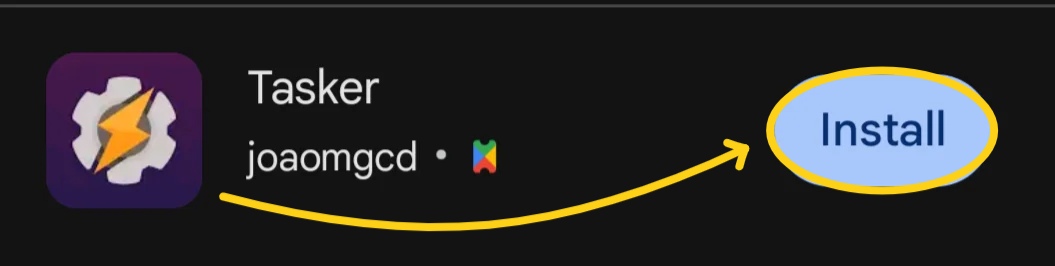
Tap "Install" to download "Tasker" onto your Android Device (just below the sponsored application add at the top.)
Step 6 Tasker "Before We Get Started"
After installation is complete, open the Tasker app, and tap on "OK" at the top right of the app to allow Blutext and Tasker to communicate.
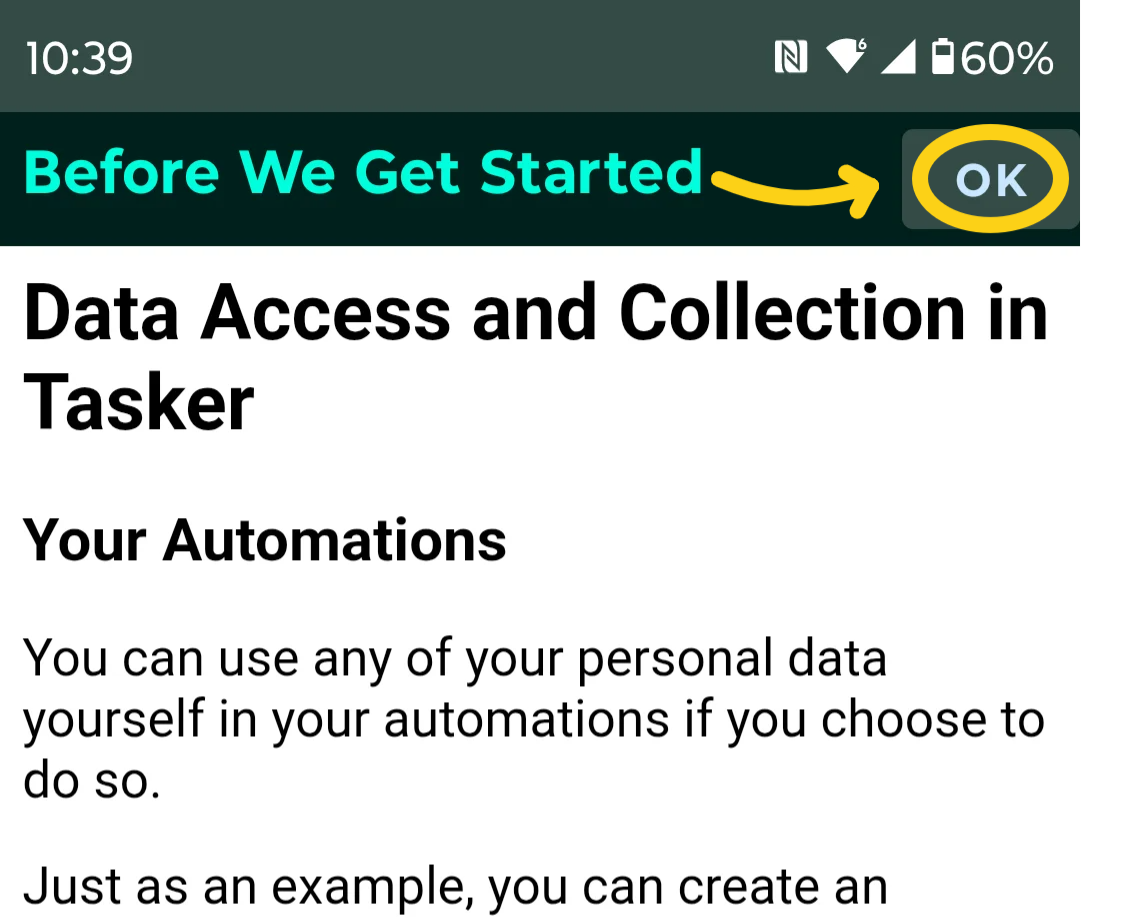
*Note: In a nutshell, this gives permission to Tasker and Blutext to communicate and execute the texting sequences. To learn more detail, review the "Before We Get Started" information before tapping "OK".
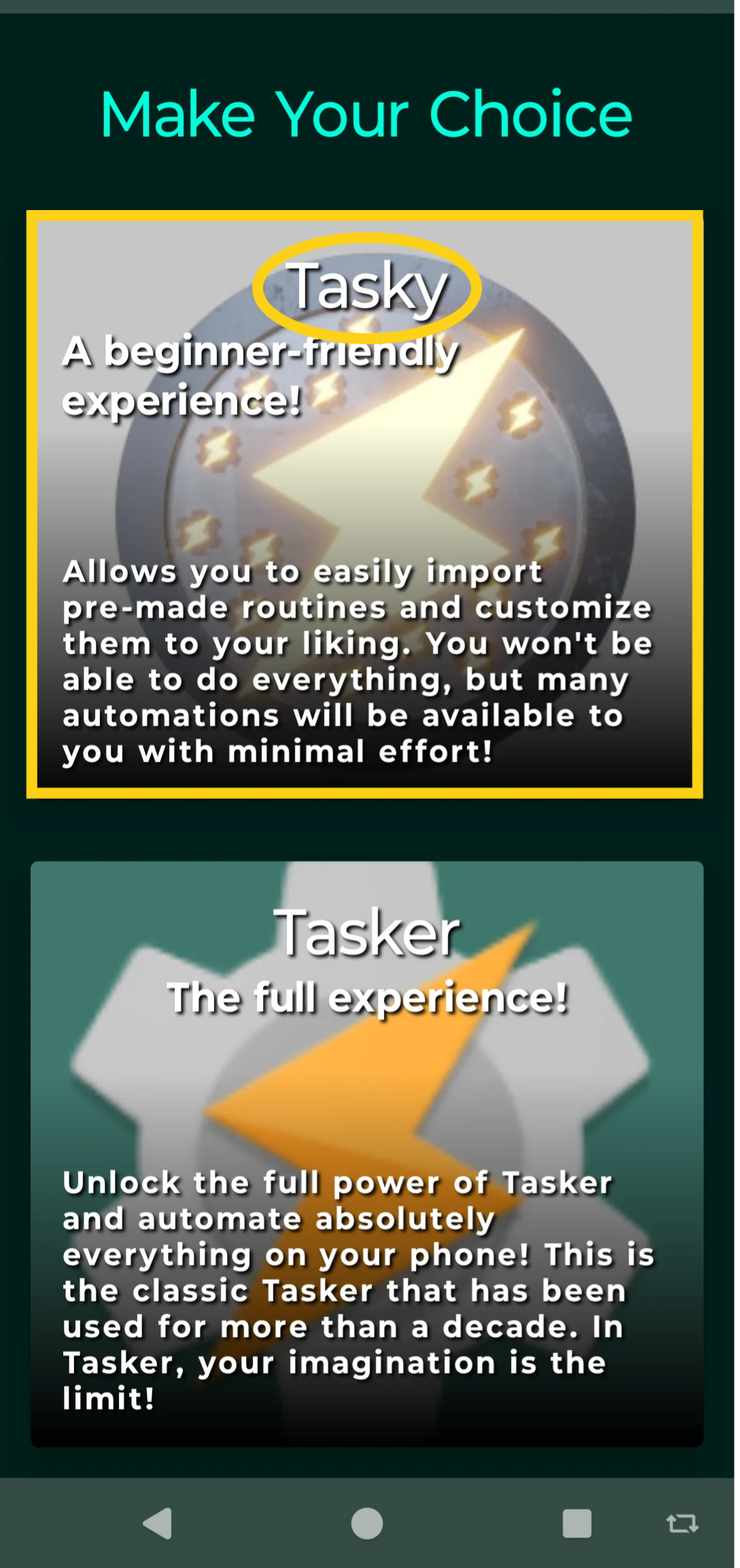
Step 7 Tasker "Make Your Choice"
Tap on the "Tasky" tile to proceed with Blutext set-up.
Step 8 Tasker Terms & Permissions
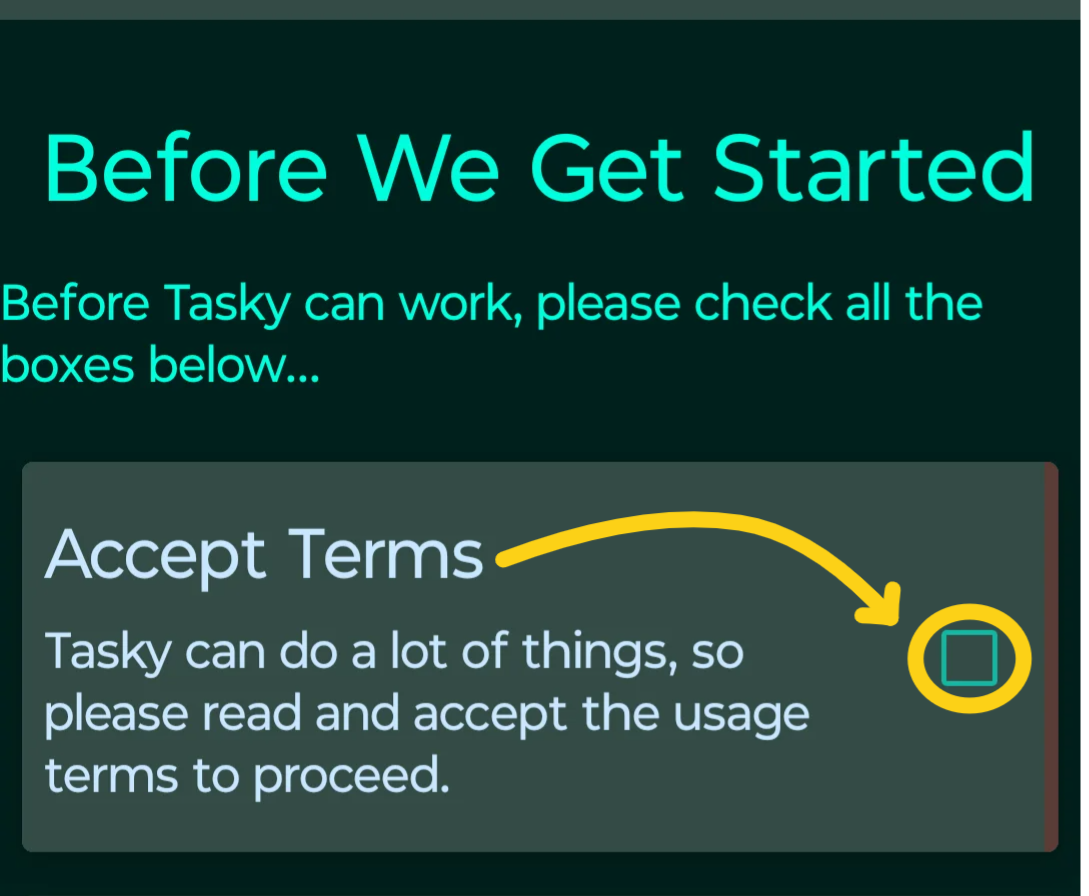
Accept Terms
Tap the "Accept Terms" box.
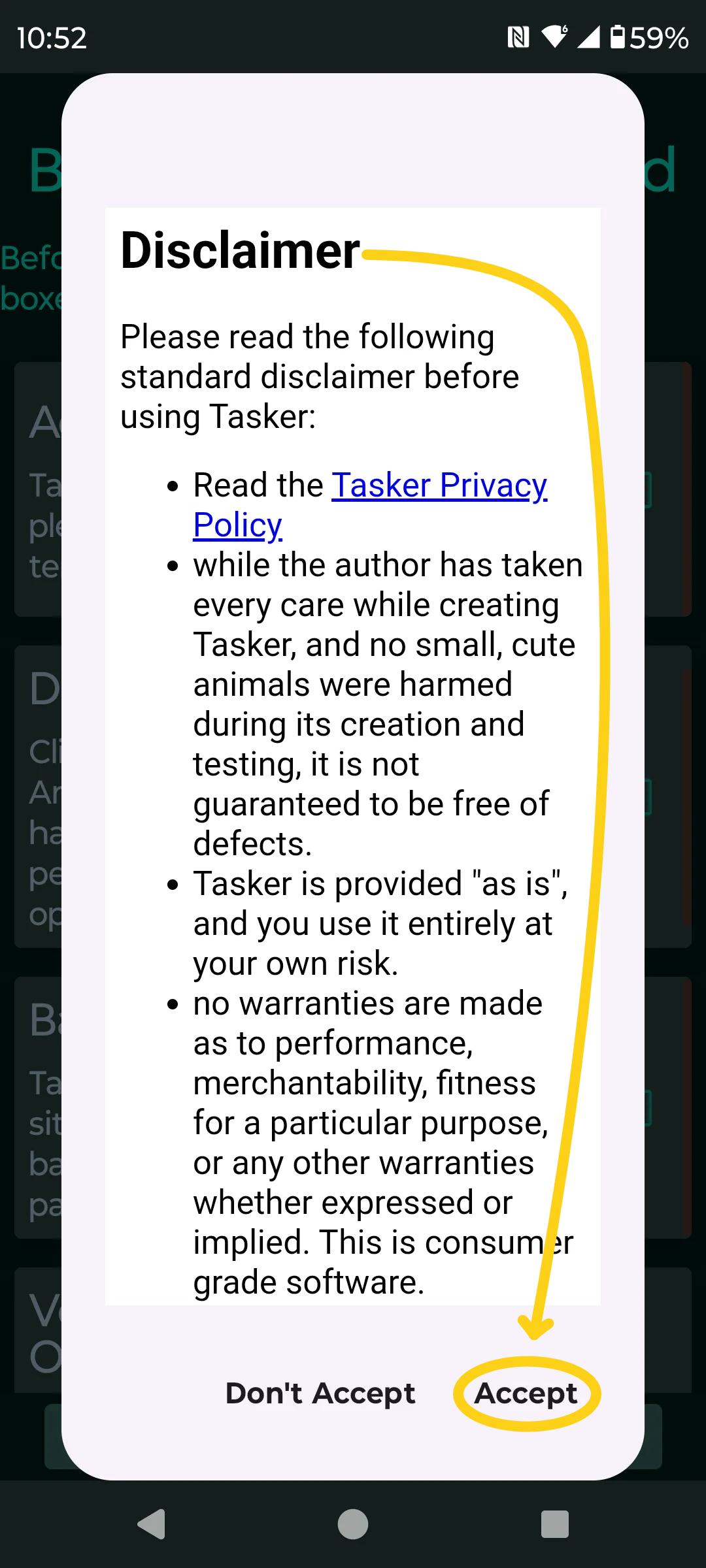
Then tap "Accept" at the bottom right of the Disclaimer pop-up.
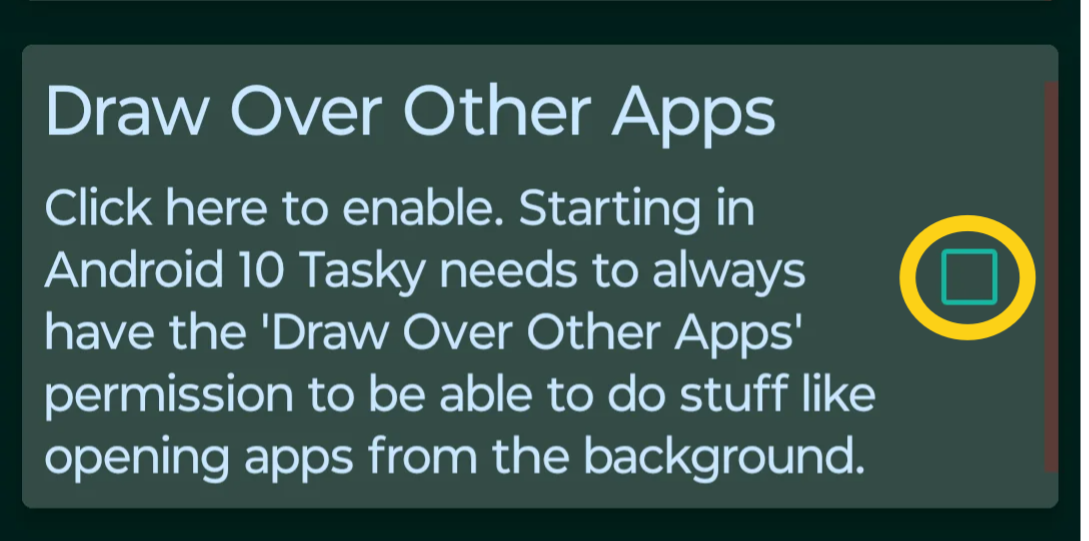
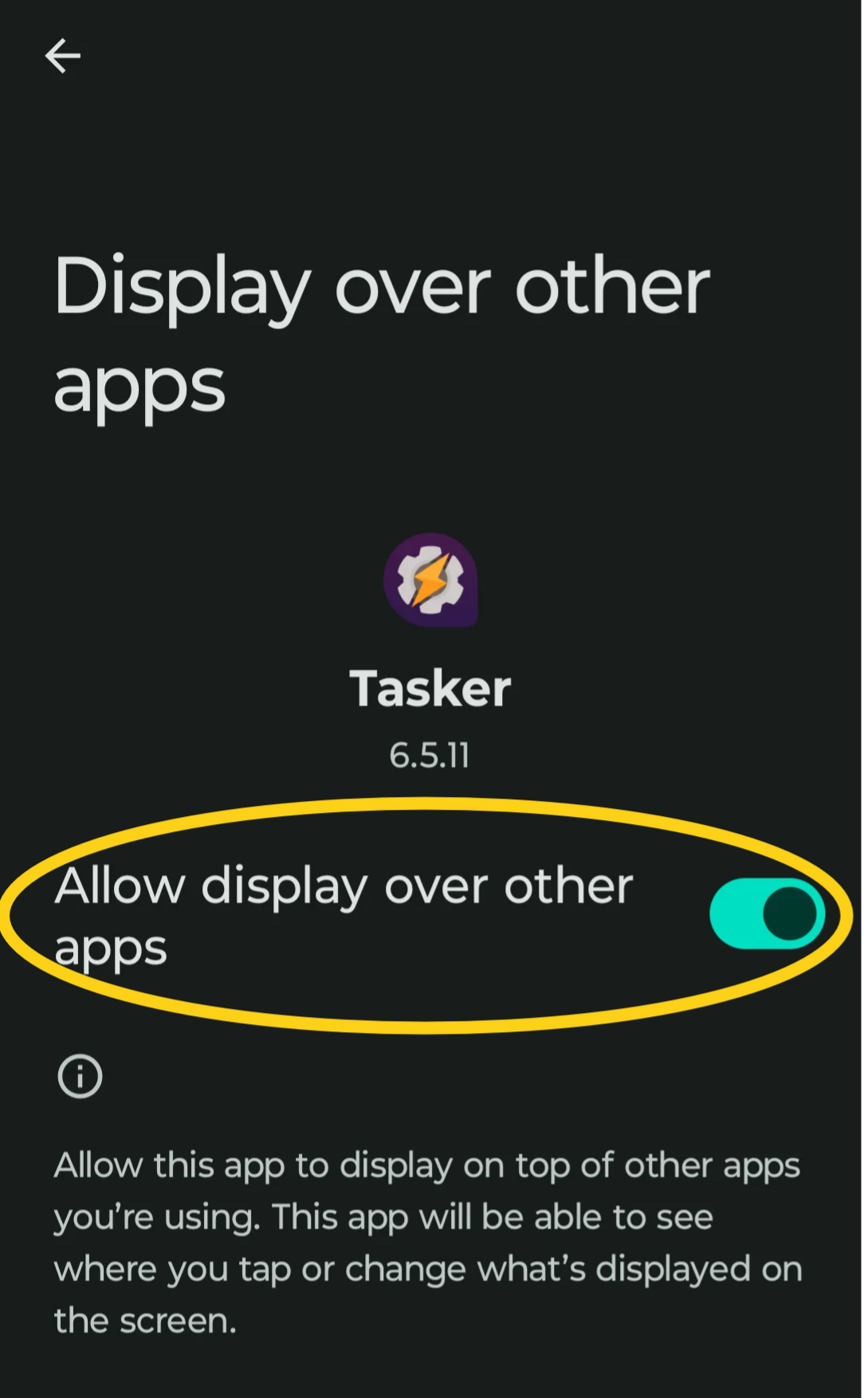
Draw Over Apps
Tap on the "Draw Over Other Apps" box. Then search for "Tasker" on the displayed list and tap "Tasker".
Tap the Tasker toggle so it slides to the right to "Allow display over apps".
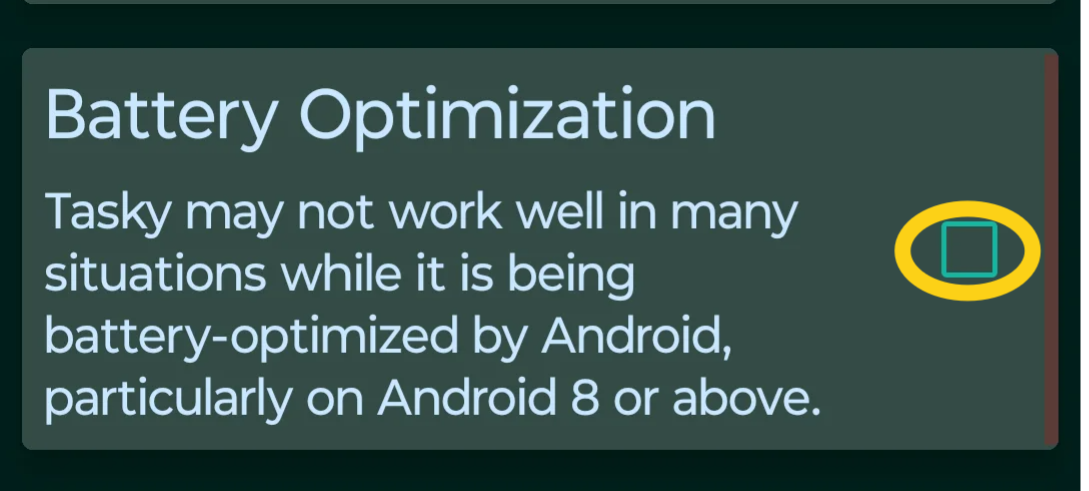
Battery Optimization
Tap on the "Battery Optimization" box.
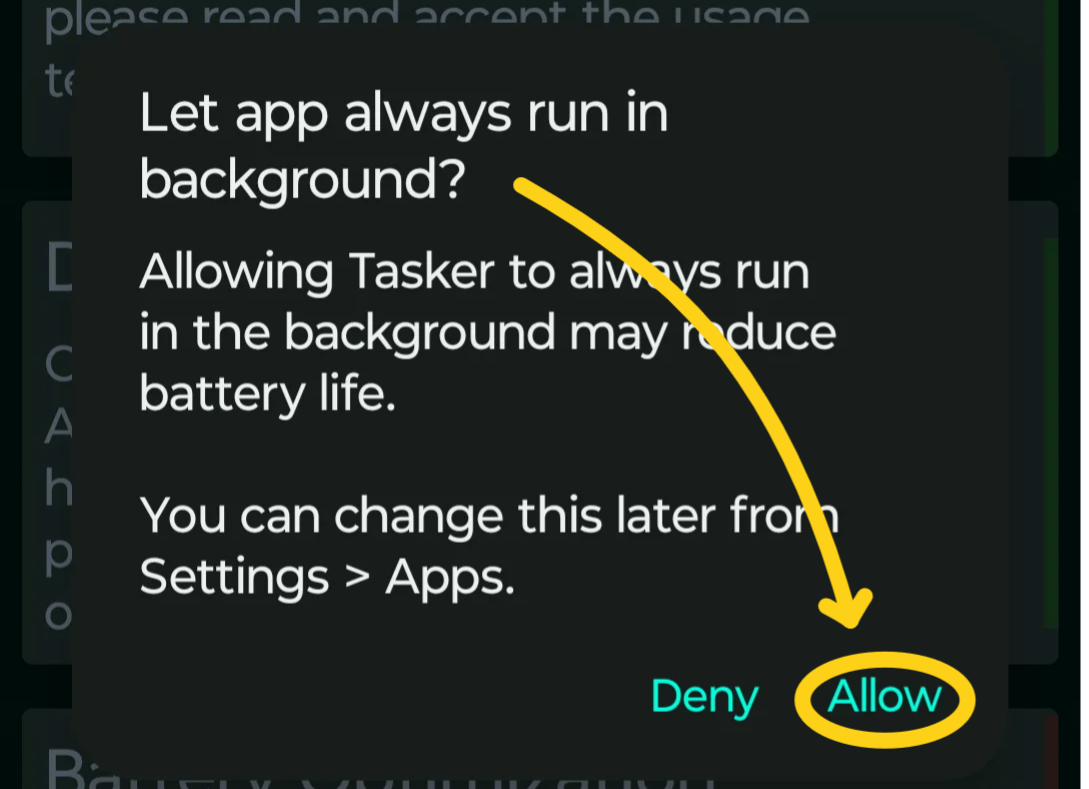
Then tap on "Allow" to let the app always run in background.
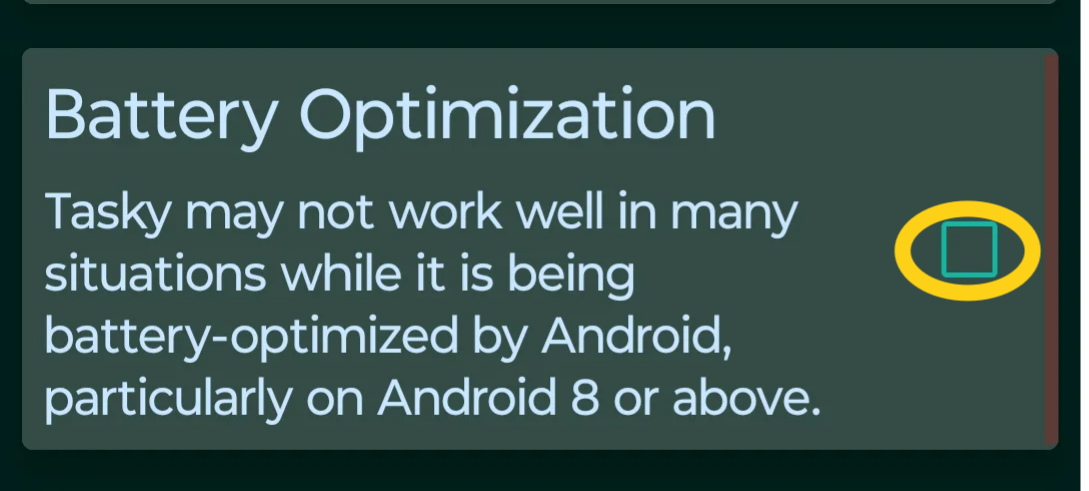
Vendor Specific Battery Optimization
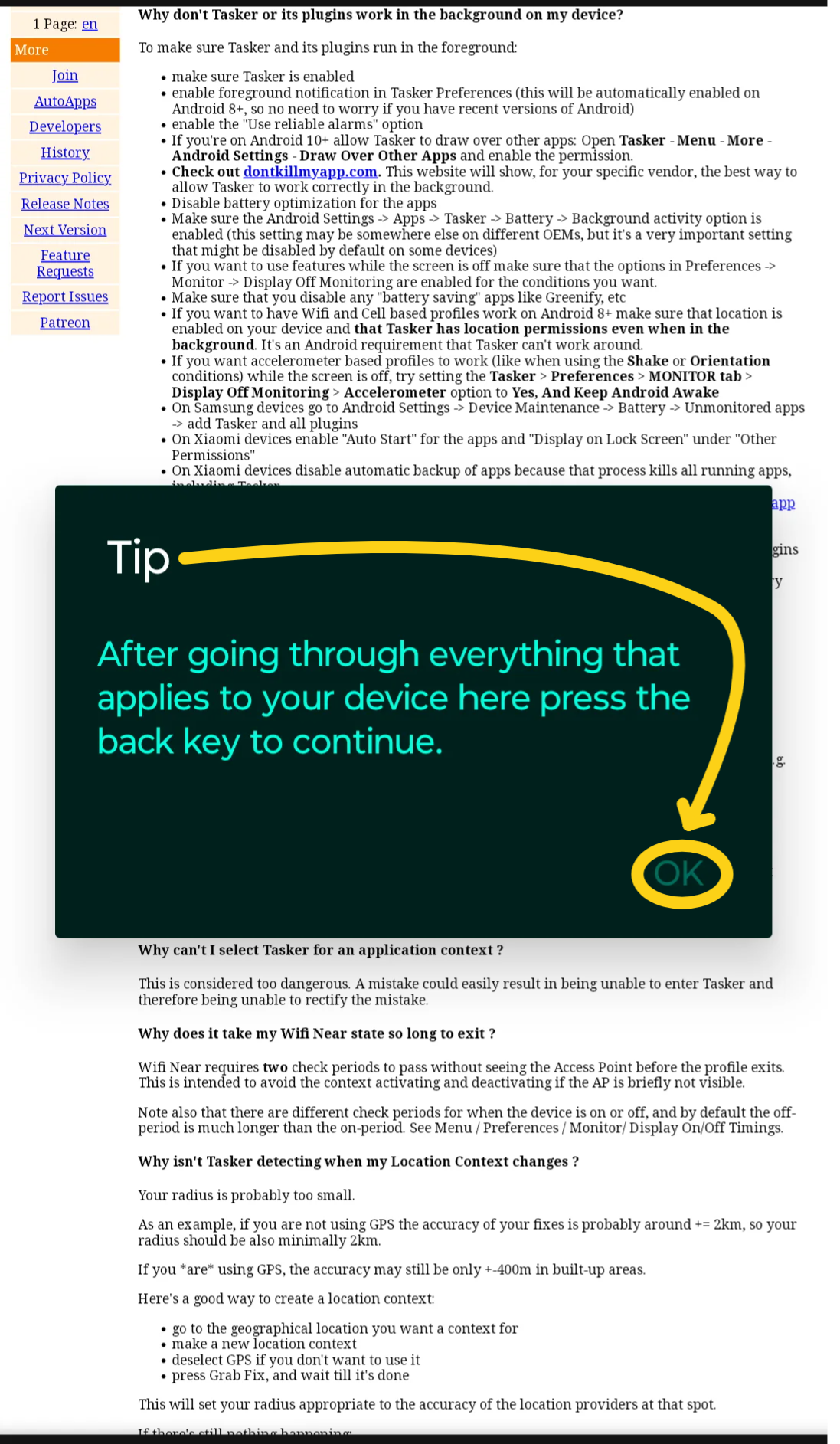
Tap on the "Vendor Specific Battery Optimization" box.
Review the Tasker content if necessary, or tap the back button to navigate back to the Tasker app.
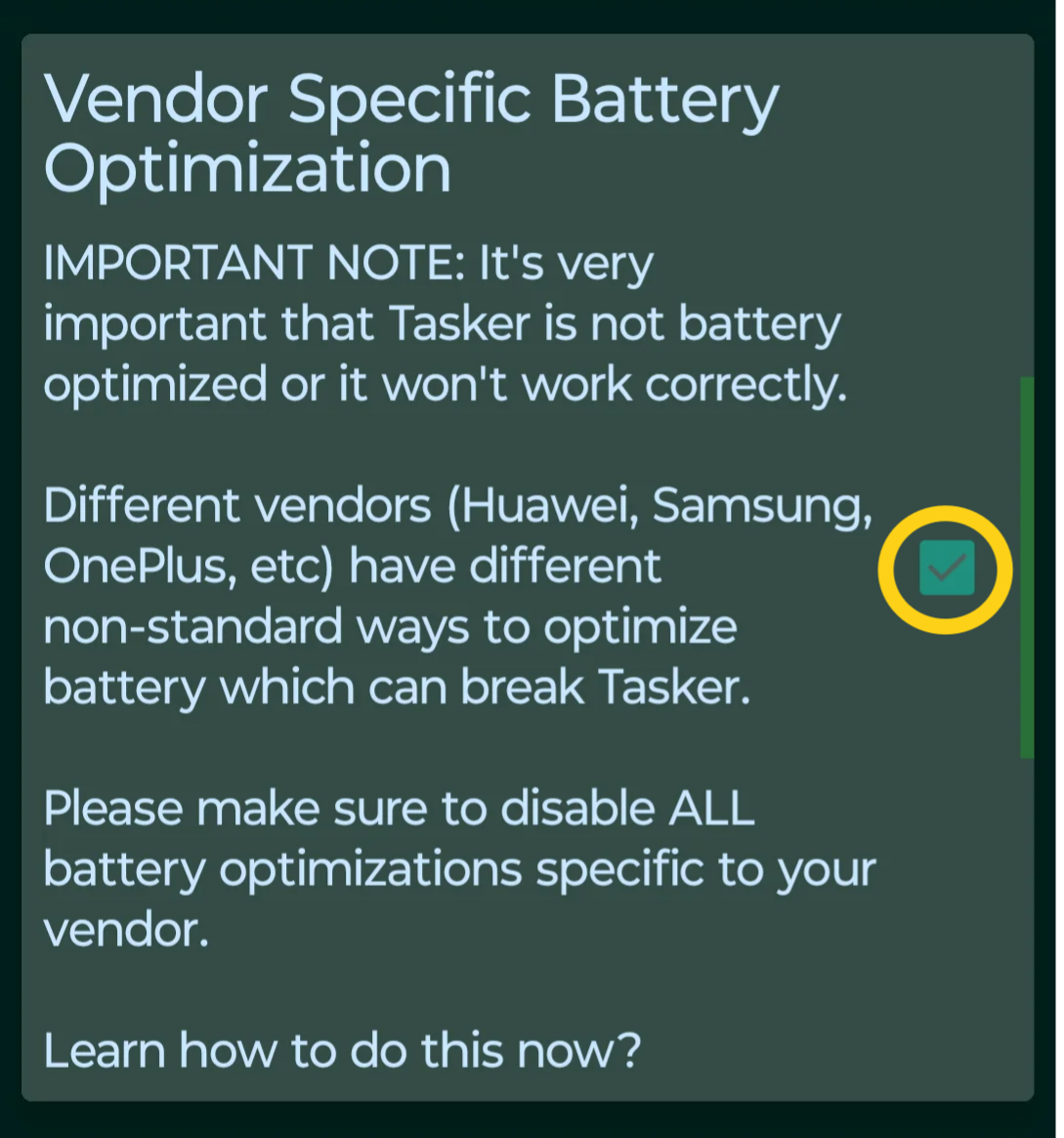
You will see the "Vendor Specific Battery Optimization" is now checked off.
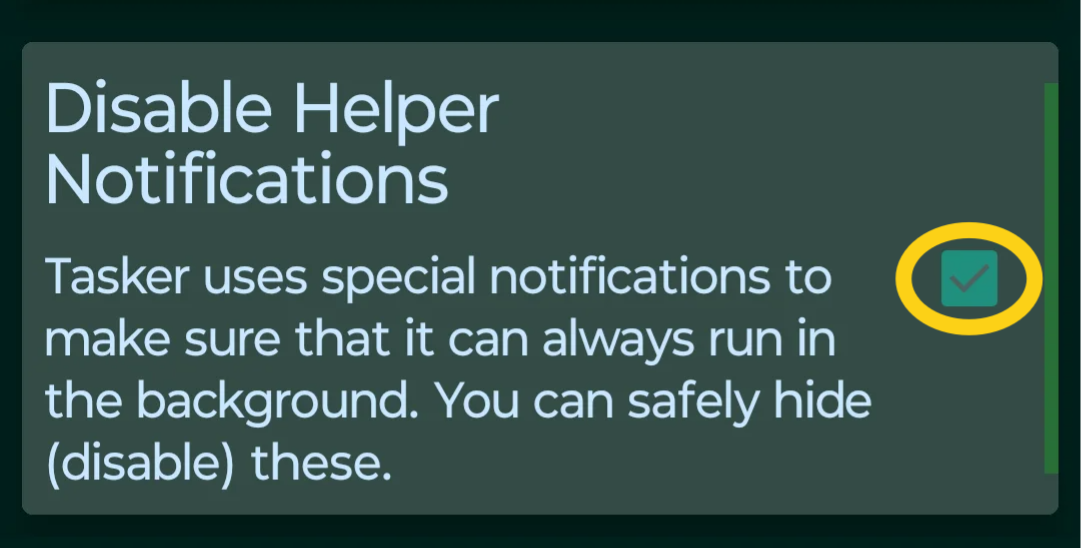
Disable Helper Notifications
Tap on the "Disable Helper Notifications" box.
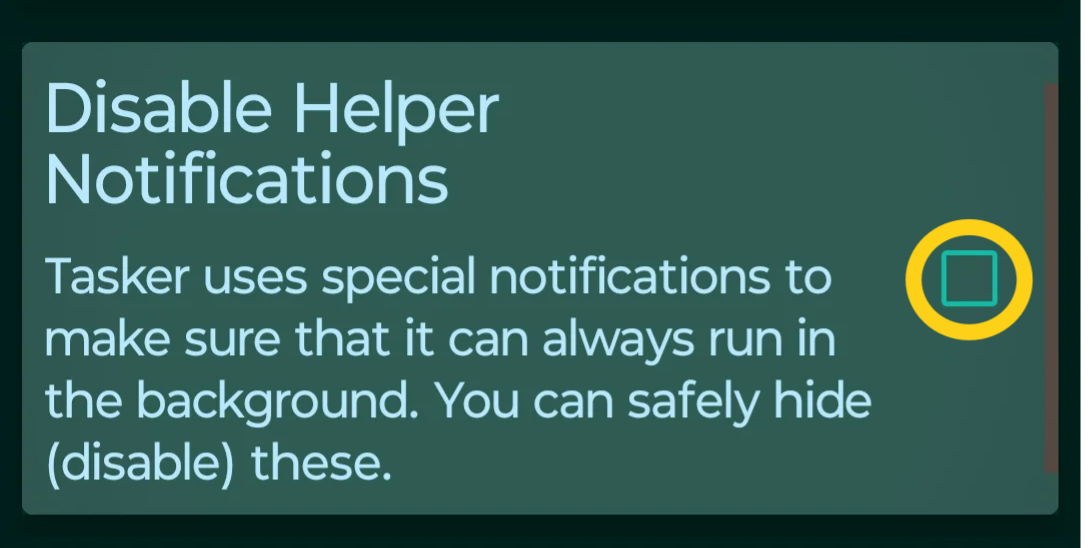
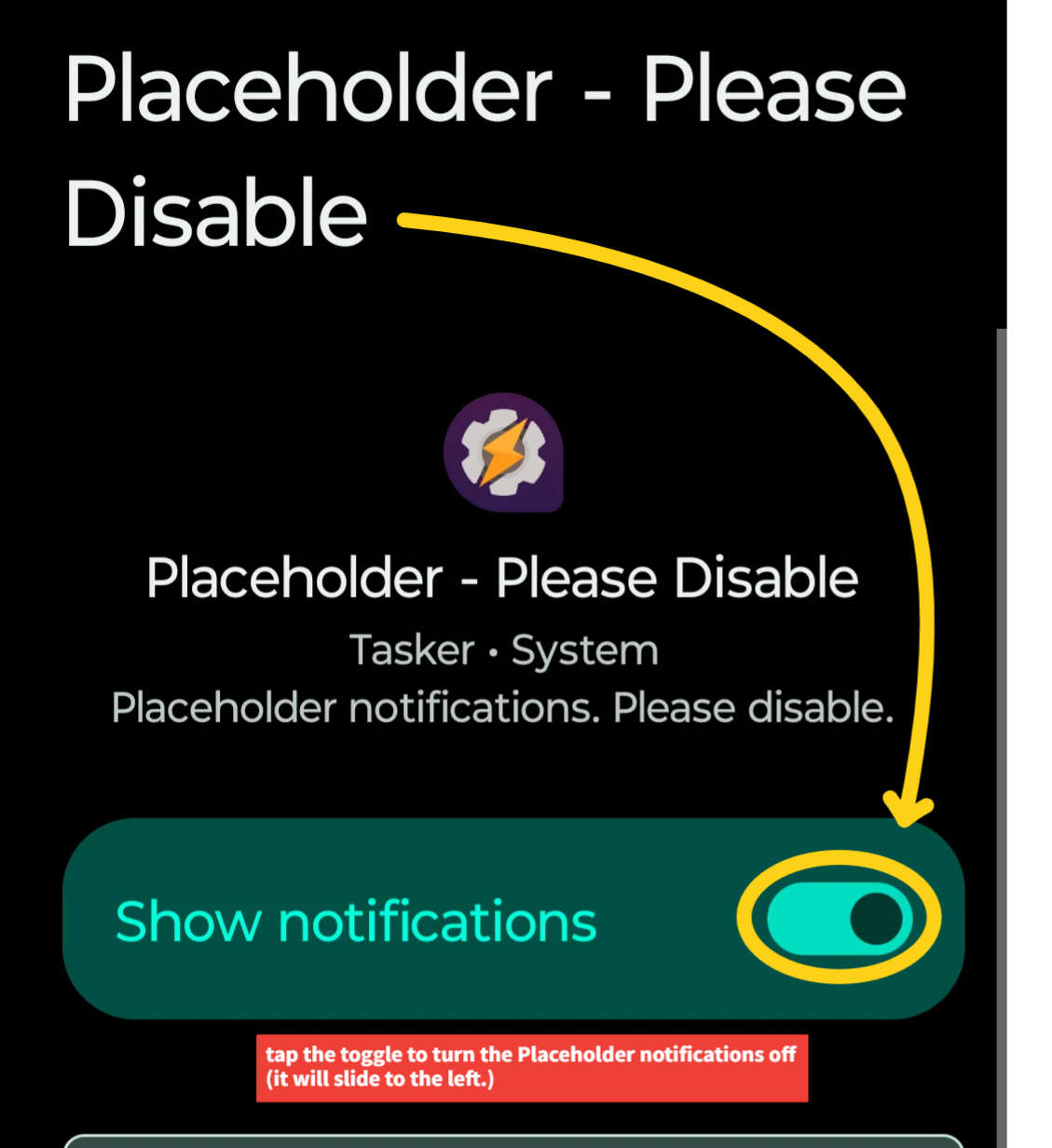
Tap the "Placeholder - Please Disable" toggle so it slides to the left to disable the function. It will be toggled ON by default.
You will see the "Disable - Helper Notifications" is now checked off.
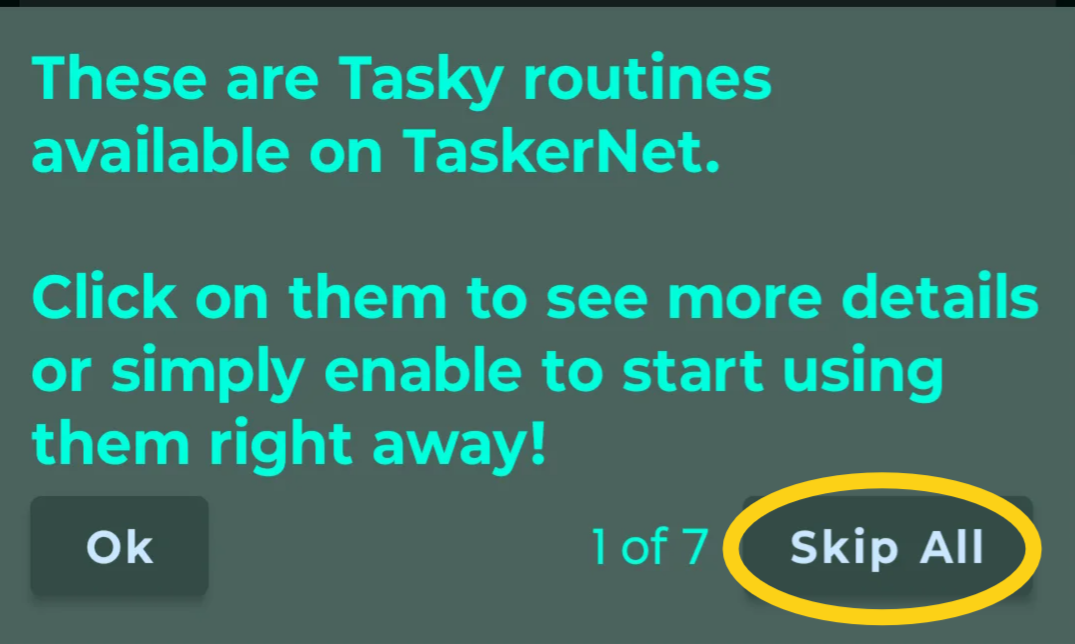
Step 9 Tasky Routing Tutorials
Tap on "Skip All" at the bottom right.
You can always come back to these in Tasky by tapping on the "hamburger menu" at the top right, then "Tasker". Once back on Tasker, tap the "hamburger menu" again, and tap on "Tutorials/Pre-made Projects".
Step 10 Tasker Cloud Routines & Blutext Installation
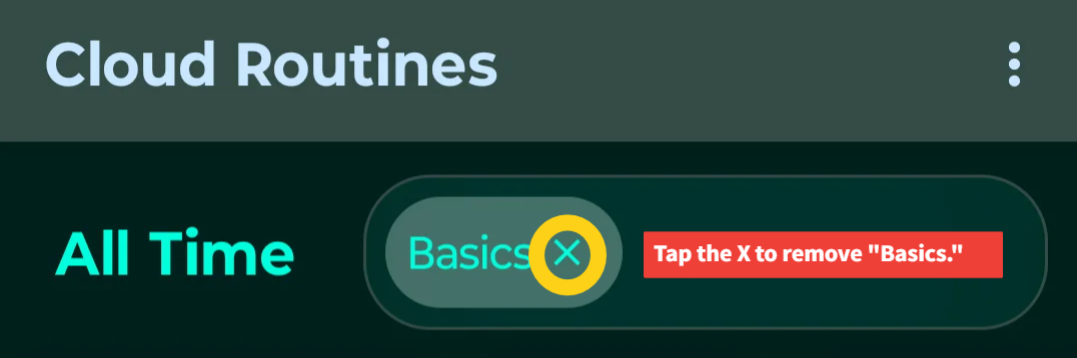
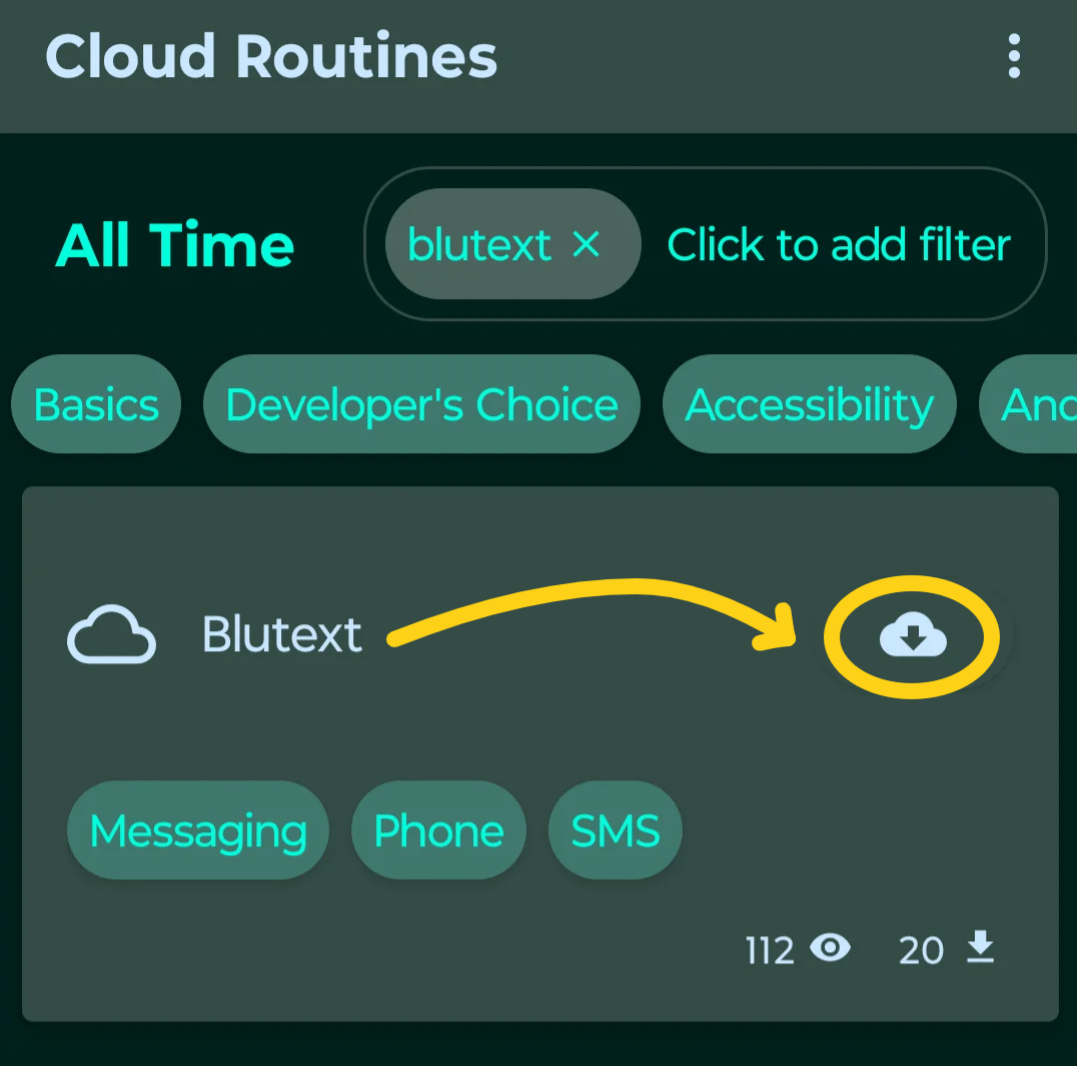
Locate Blutext
Tap the "X" to the right of "Basics" to remove it.
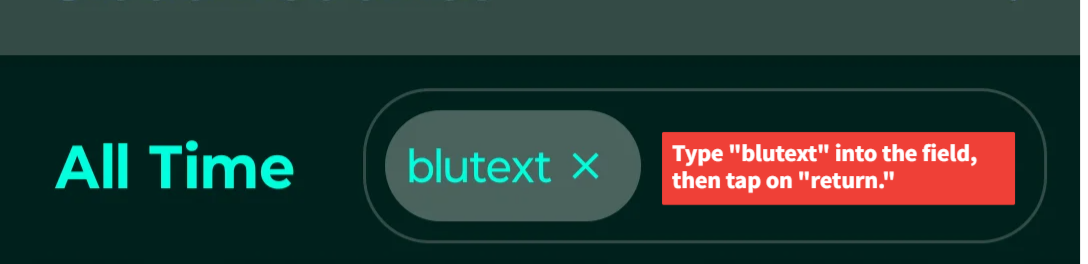
Type in "Blutext" and tap return.
You will see a Blutext tile appear. Tap the "download" arrow icon.
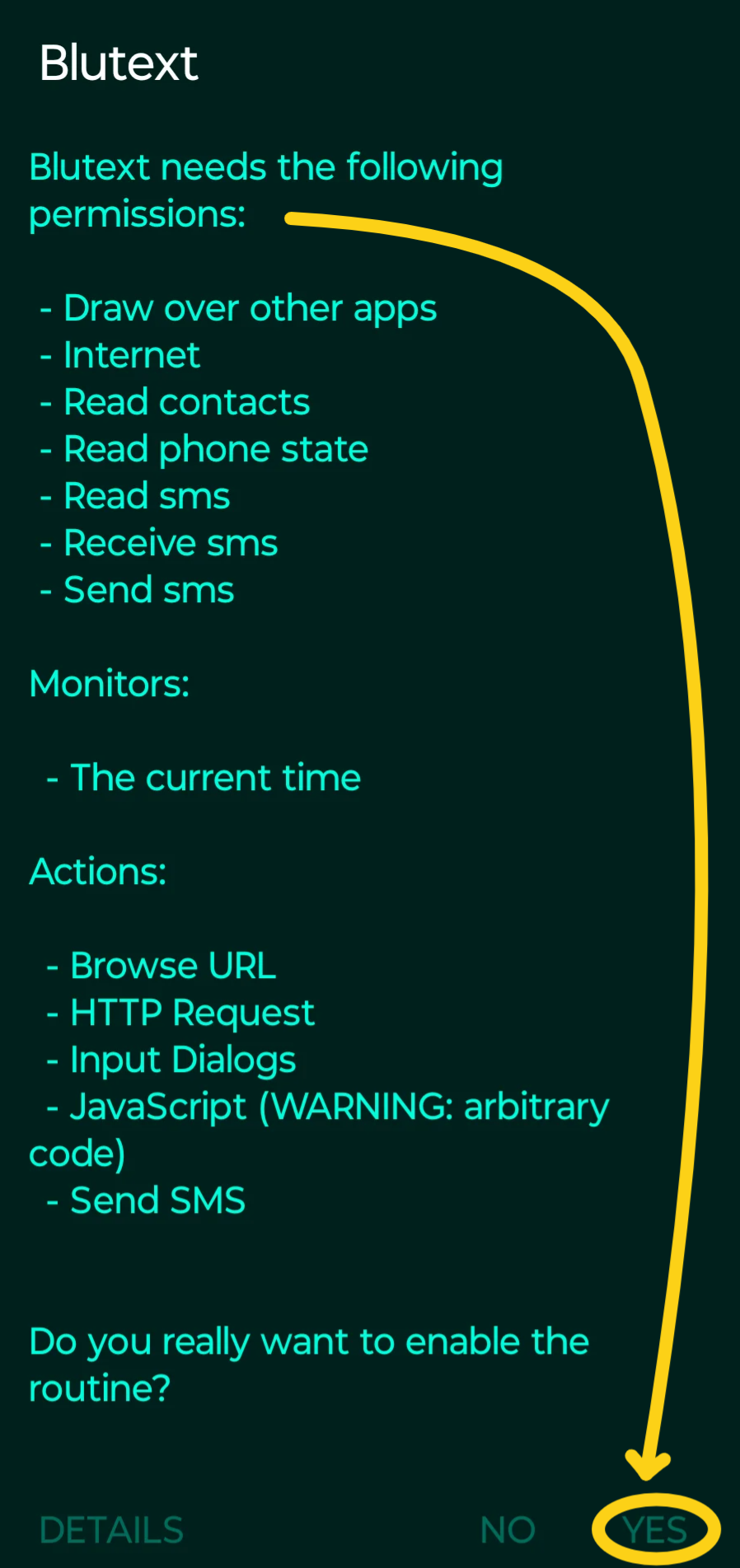
Blutext Permissions #1
Tap "YES" on the first Blutext Permissions page.
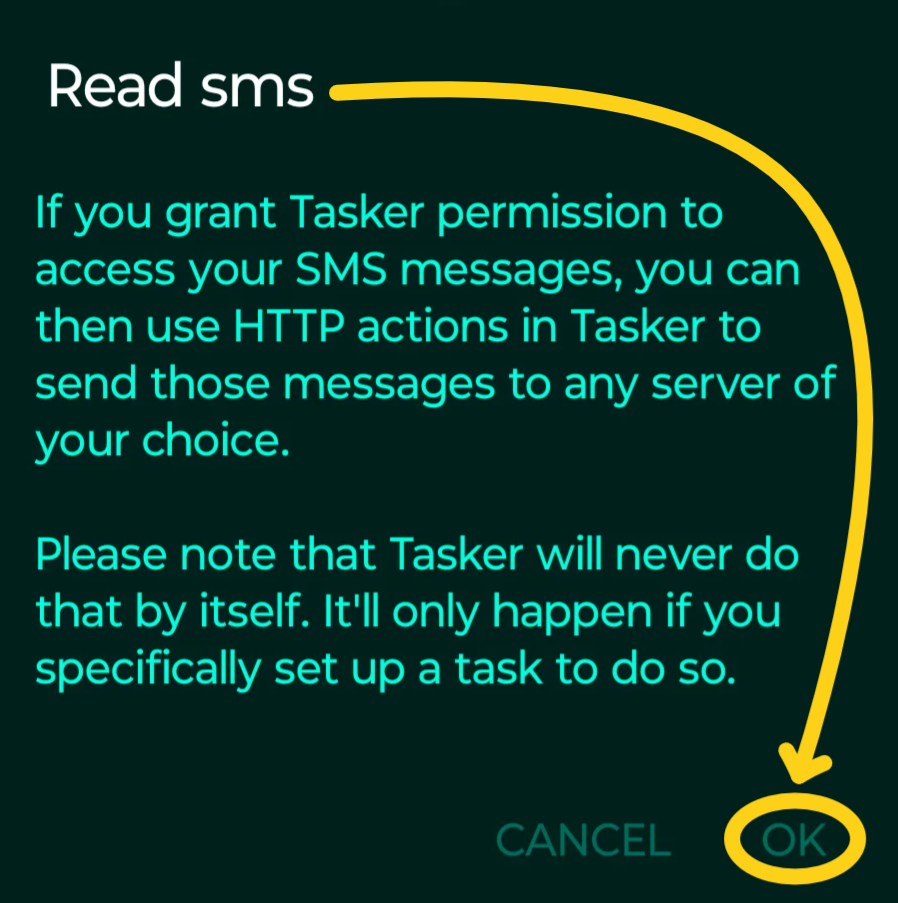
Read sms
Tap "OK".
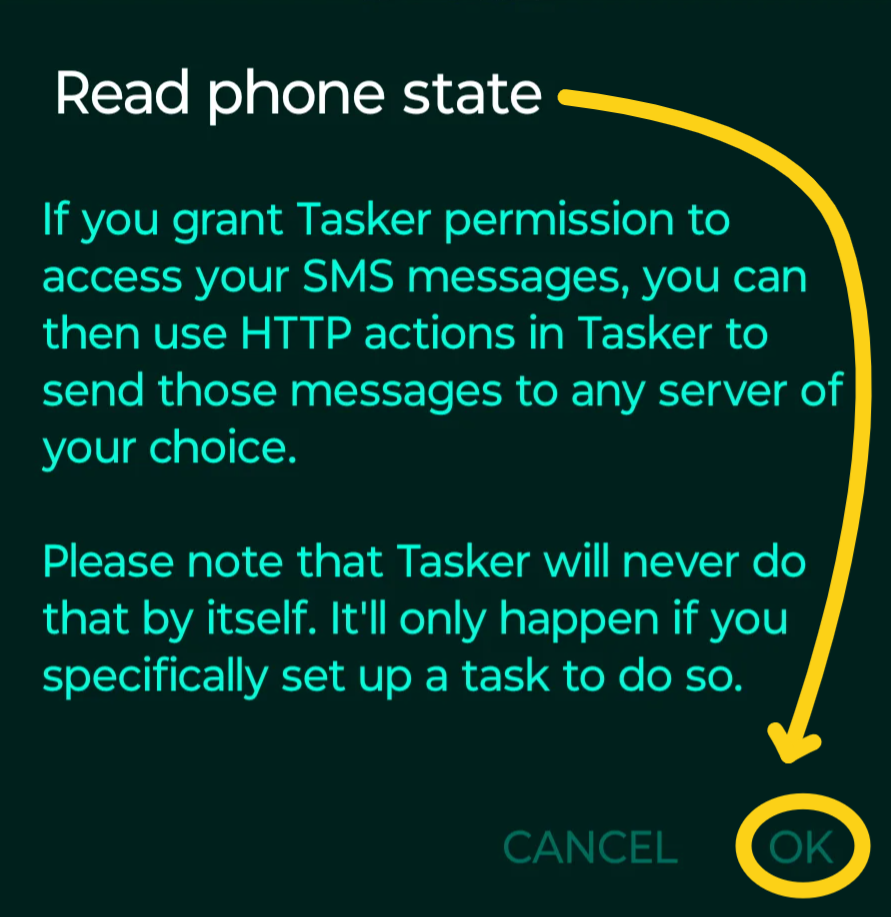
Read phone state
Click "OK".
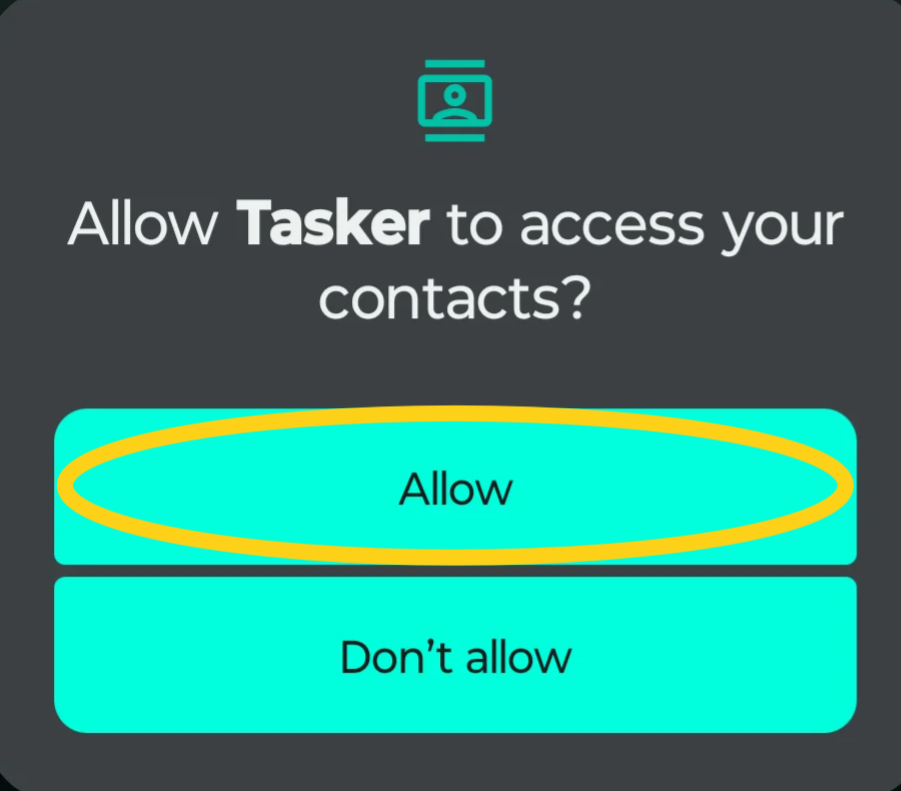
Allow Tasker to access your contacts?
Tap "Allow".
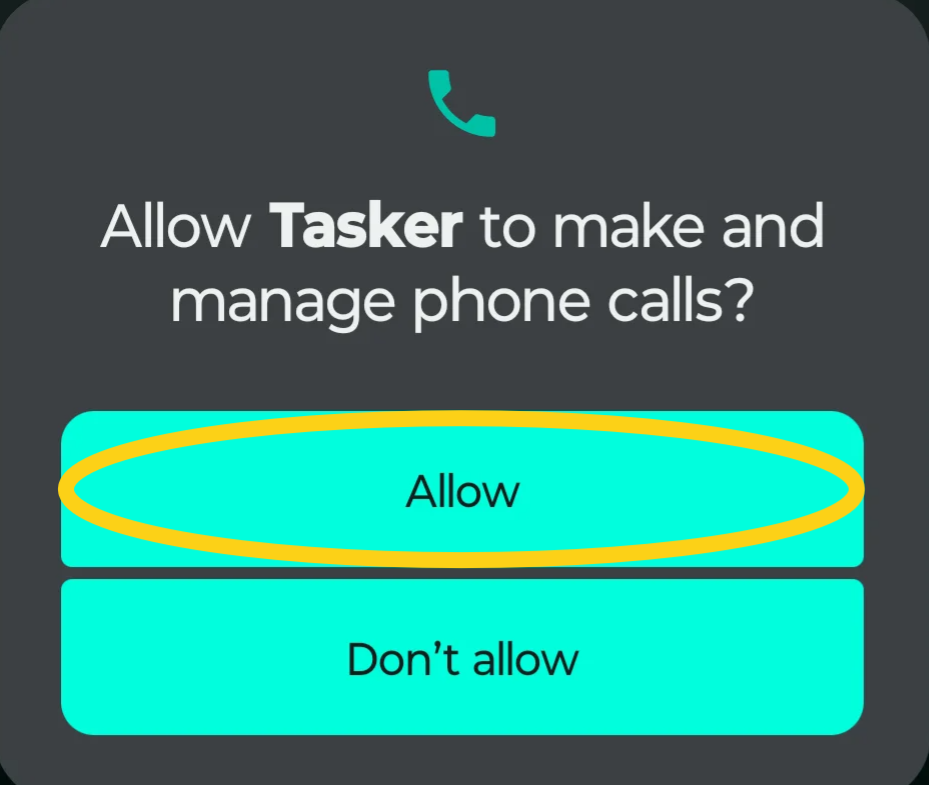
Allow Tasker to make and manage phone calls?
Tap "Allow".
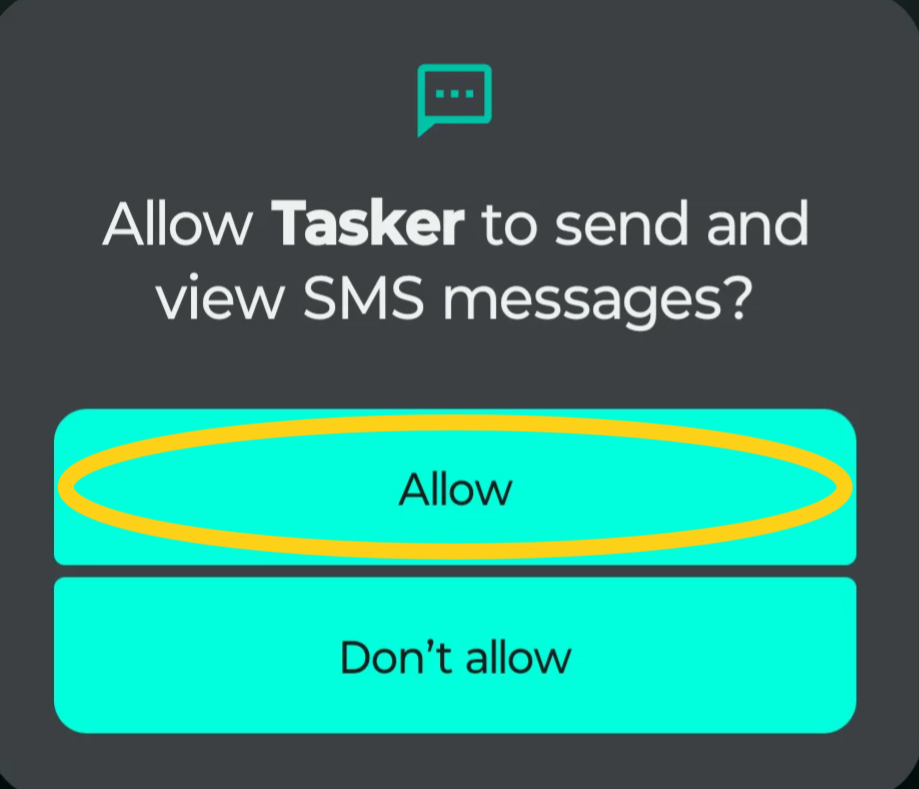
Allow Tasker to send and view SMS messages?
Tap "Allow".
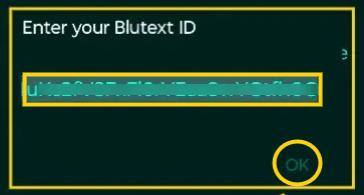
Step 11 Tasker Enter your Blutext ID
Paste the Blutext ID you retrieved from Step 2 into the "Enter your Blutext ID" field and tap "OK".
Step 12 Tasker Blutext & Your Routines
The page will update to "Your Routines" and you will see a "Blutext" tile just below.
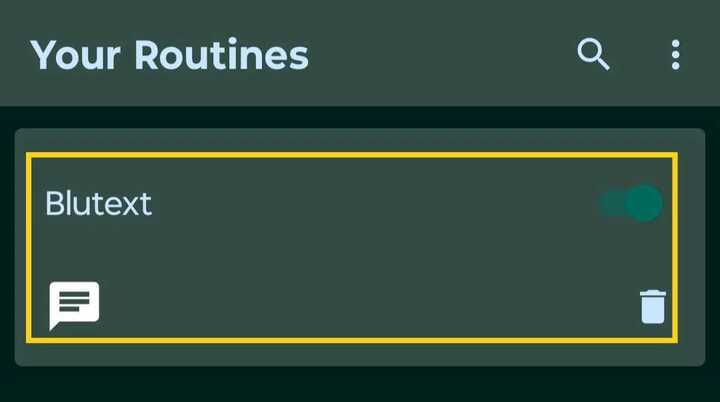
The system will automatically run from 9:00 AM - 7:00 PM (10 hour window.)
Texts trigger within approximately 10 minutes of the scheduled time.
Android & Blutext FAQs
"Your Blutext API Keys - Ready to Use! 🚀?" Email
When you sign up for the trial, the system make take up to a minute to process the new account and send out your email.
The subject is "Your Blutext API Keys - Ready to Use! 🚀"
*Note: Although unlikely, it could be sorted into your spam folder based on your email provider.
What do I need the "Tasker" app for?
The Tasker app enables automations on your Android device. Blutext connects your campaigns to your phone line but still relies on Tasker to connect to your phone's texting capabilities.
I'm having trouble finding "Blutext" within the Tasker search menu.
Tap the "X" to the right of the default "basic" tag from the search bar. Once the bar is empty, type "Blutext" into the field, and tap to select it.
I forgot to copy my Blutext ID before running Tasker's setup and had to close out of it, what do I do?
Simply go to your email to copy the Blutext ID. When you return to Tasker, tap on the Blutext tile. Scroll to the right of "Reconfigure" and tap on the second cog. Paste the Blutext ID into the field, then tap "OK" to complete adding the Blutext ID.
Tasker seems to be in place, am I all good?
Indeed! Now you can use your Blutext ID as an API key to start connecting with your CRMs, using programs such as Zapier. Once a text is triggered to be sent by Blutext, it will be prompted to be sent by your phone within approximately 10 minutes of the send time.
Can I See Text Replies In My CRM?
You will need to manually log the conversation in your CRM, as Blutext only initiates outbound messages at this time.
Need help? Chat with us or contact support@blutext.com.