
iPhone Blutext Installation
Welcome to Blutext! Thank you for choosing us for your texting needs. Follow the steps below to set up your Blutext account on your iPhone device.
If you haven't signed up for the trial, click here to do so first.
Note: Upon initial setup, the iPhone will trigger the first full day after installation. For instance, if you set up your iPhone today, texts would start to trigger between 9 am - 7 pm of the recipient time zone the next day. Texts take between 5-10 minutes to deploy, and you will see them on your iPhone as sent messages.
How To Install Blutext On Your iPhone
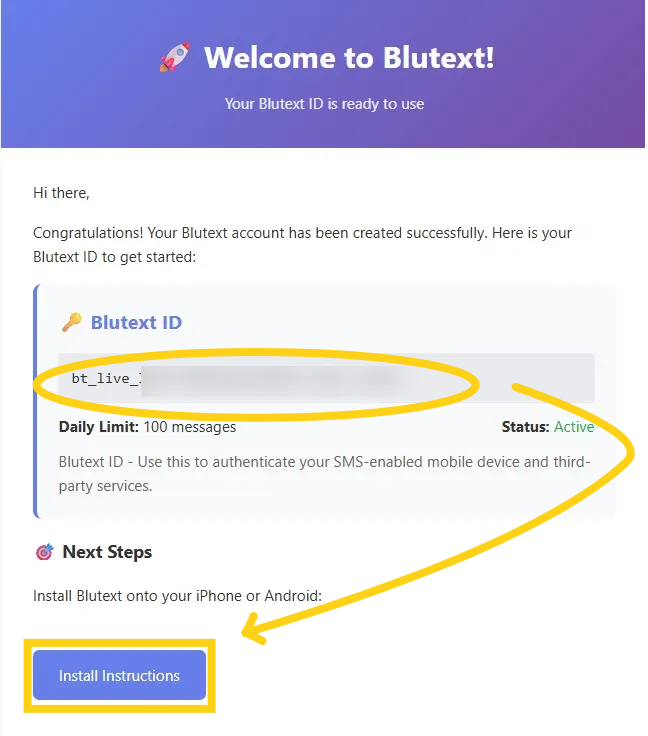
Step 1 iPhone & Blutext Welcome Email
On your iPhone, open the email app linked to your Blutext account, locate the "Your Blutext API Keys - Ready to Use! 🚀" email to view your unique Blutext ID, and tap the blue "Install Instructions" button. This will redirect you to the Installation instructions for iPhone in your mobile browser.
Step 2 Copy Blutext ID
Tap on the "Tap to Copy Blutext ID to Clipboard" button, then click "close" on the "Copied to Clipboard" pop-up.

Step 3 iPhone Install Link
Tap the "iPhone Install Link" button.

Step 4 Blutext Shortcut Creation
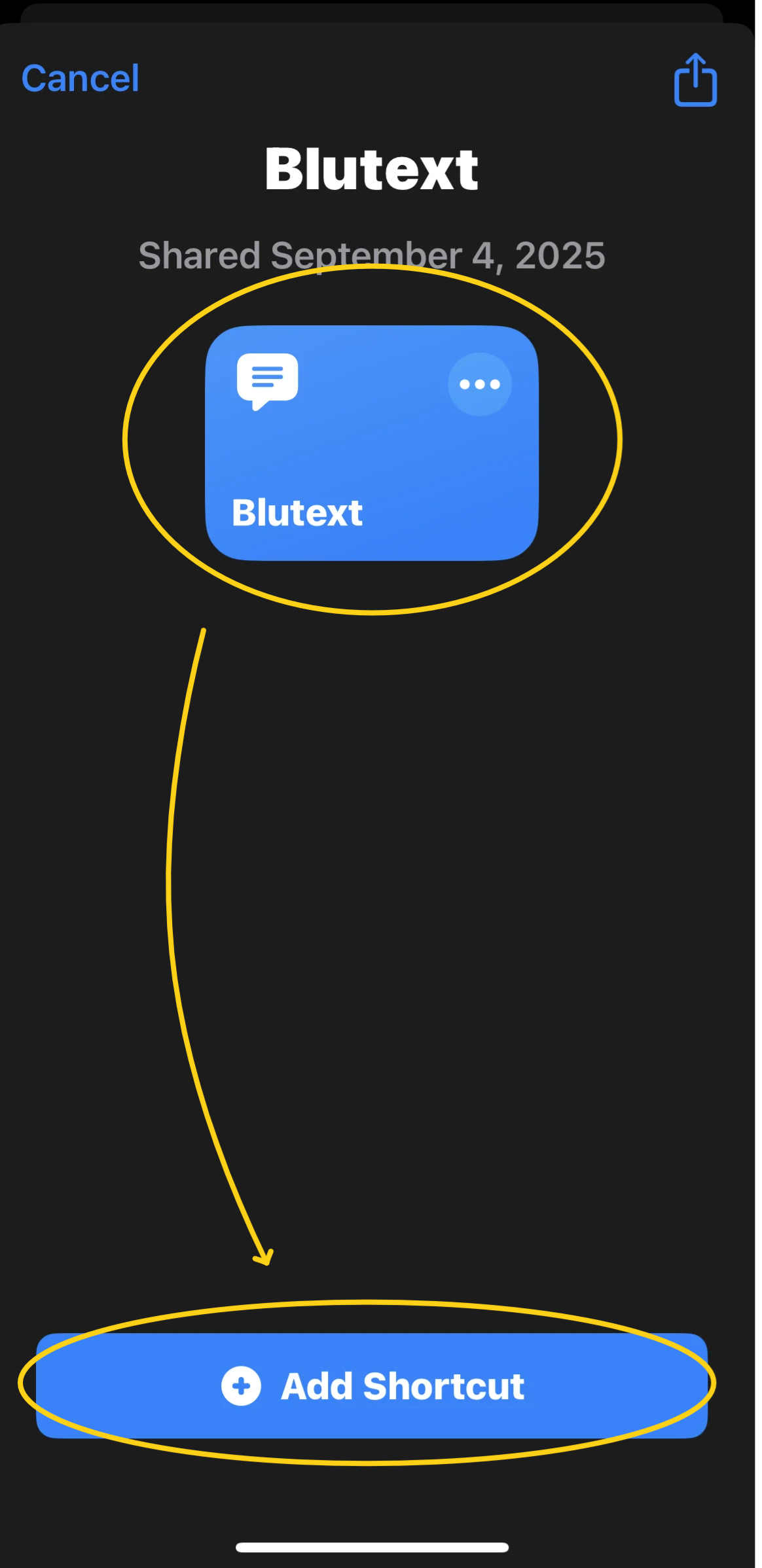
You will see a blue "Blutext" tile at the top and a blue "+ Add Shortcut" button at the bottom. Tap the "+ Add Shortcut" button.
Step 5 Blutext API Key Permission
After you have added the Blutext Shortcut, you will see a blue "Blutext" tile appear
Tap the ellipsis aka kebab menu at the top right of the Blutext tile.
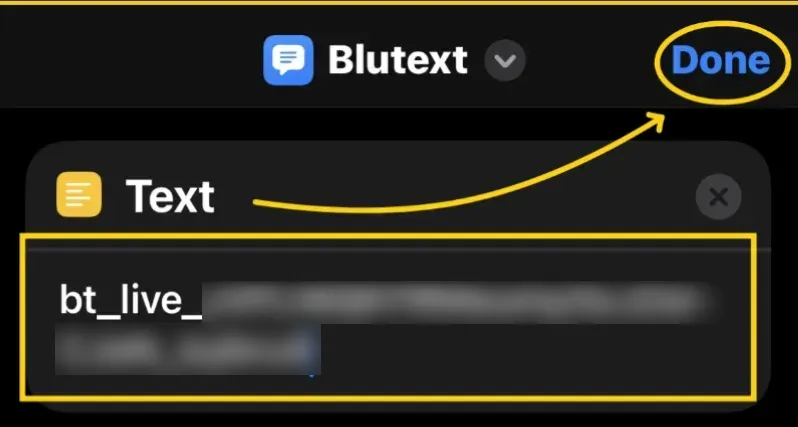
Place your text cursor into the "Text" field, and paste your copied Blutext ID from Step 2 into the "Text" field.
Tap "Done" at the top right of the page. This will redirect you back to the Blutext Tile.
Step 6 Allow Running When Locked
This setting is a key step in making sure the Shortcut will run while your iPhone is locked.
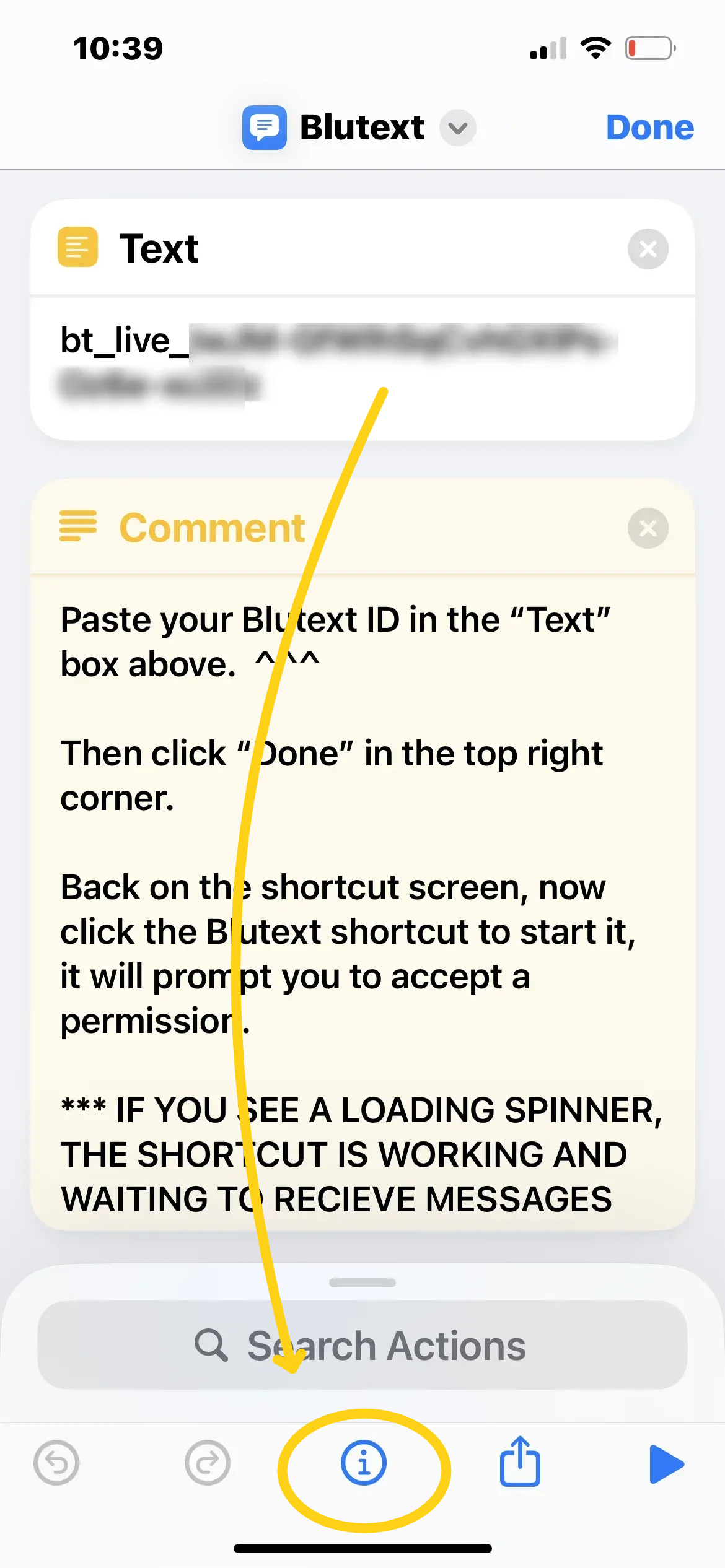
Tap on the info icon located in the middle of the bottom tray.
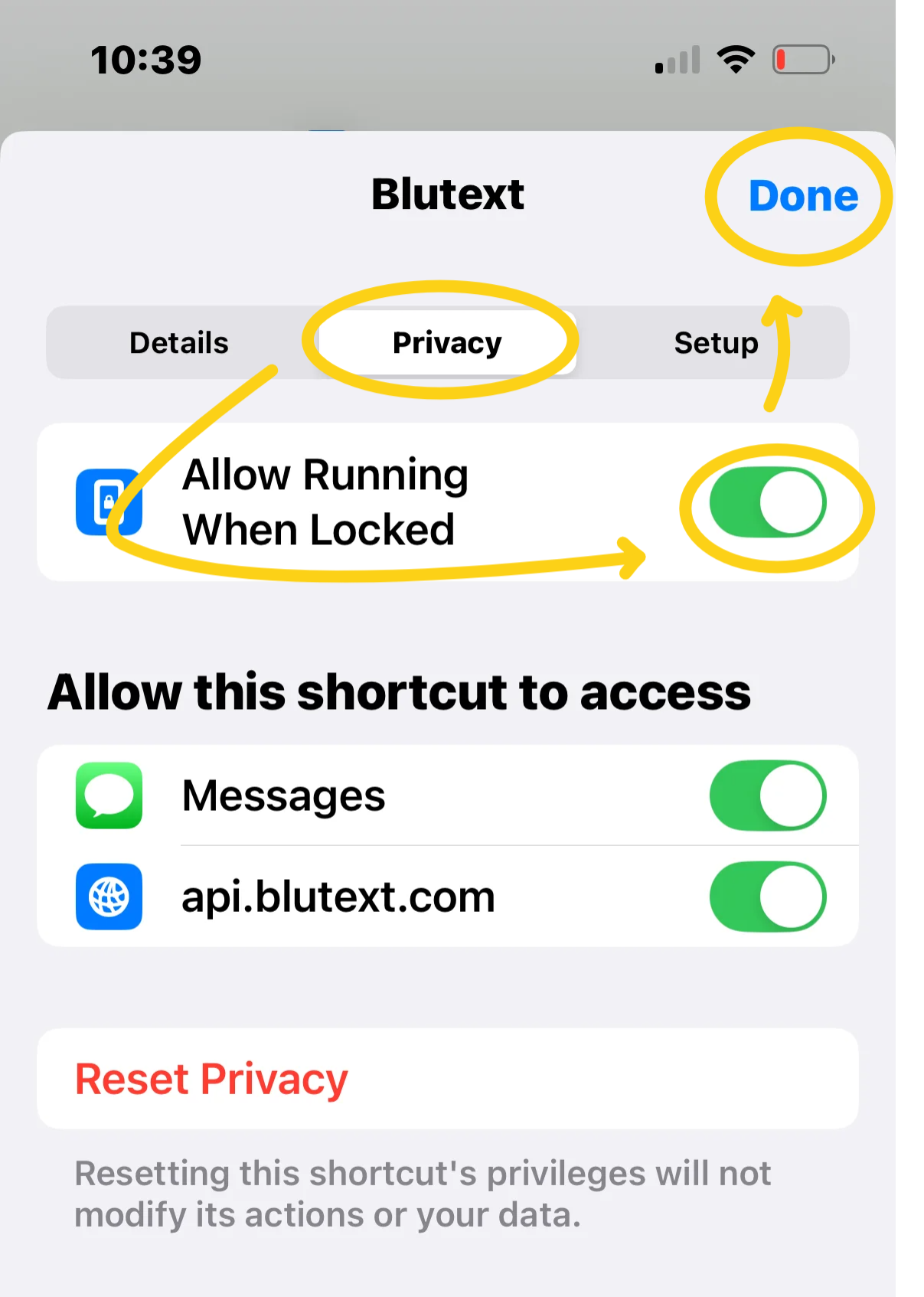
Tap on the "Privacy" tab at the top of the screen.
Tap on the "Allow Running When Locked" so it toggles to the right (turns the toggle green.)
Tap "Done" at the top right of the screen.
Step 7 Blutext Shortcut Permissions
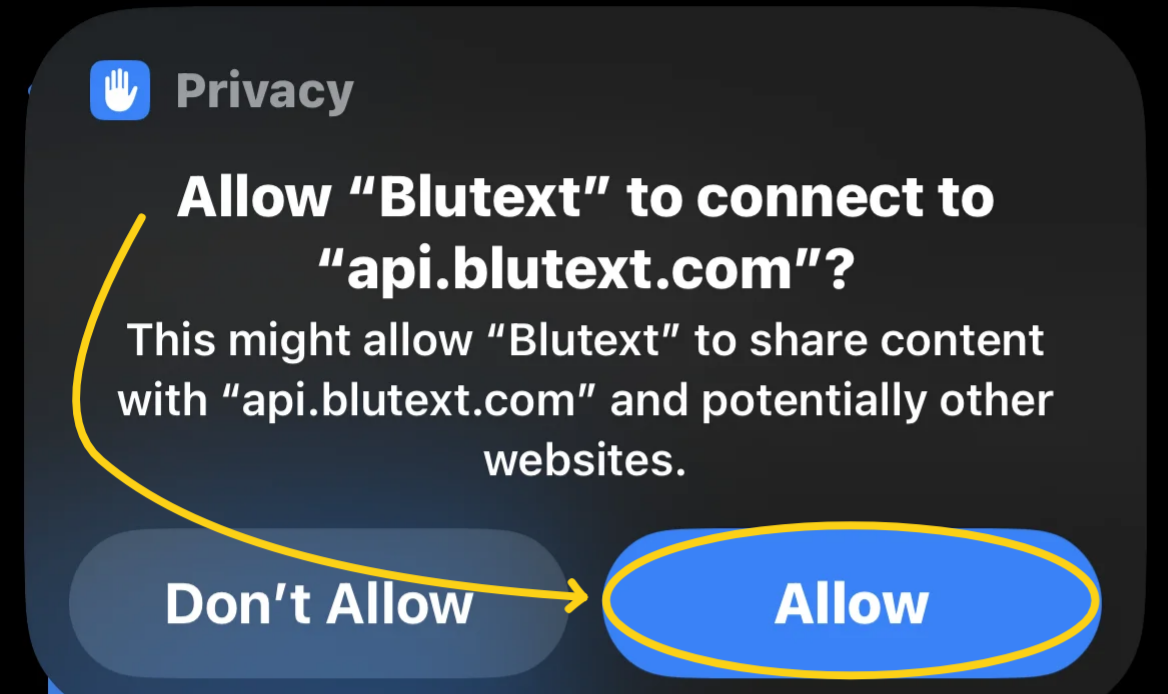
Tap the Blutext tile, to open a pop-up. Tap the blue "Allow" button to "Allow "Blutext" to connect to "api.blutext.com"?
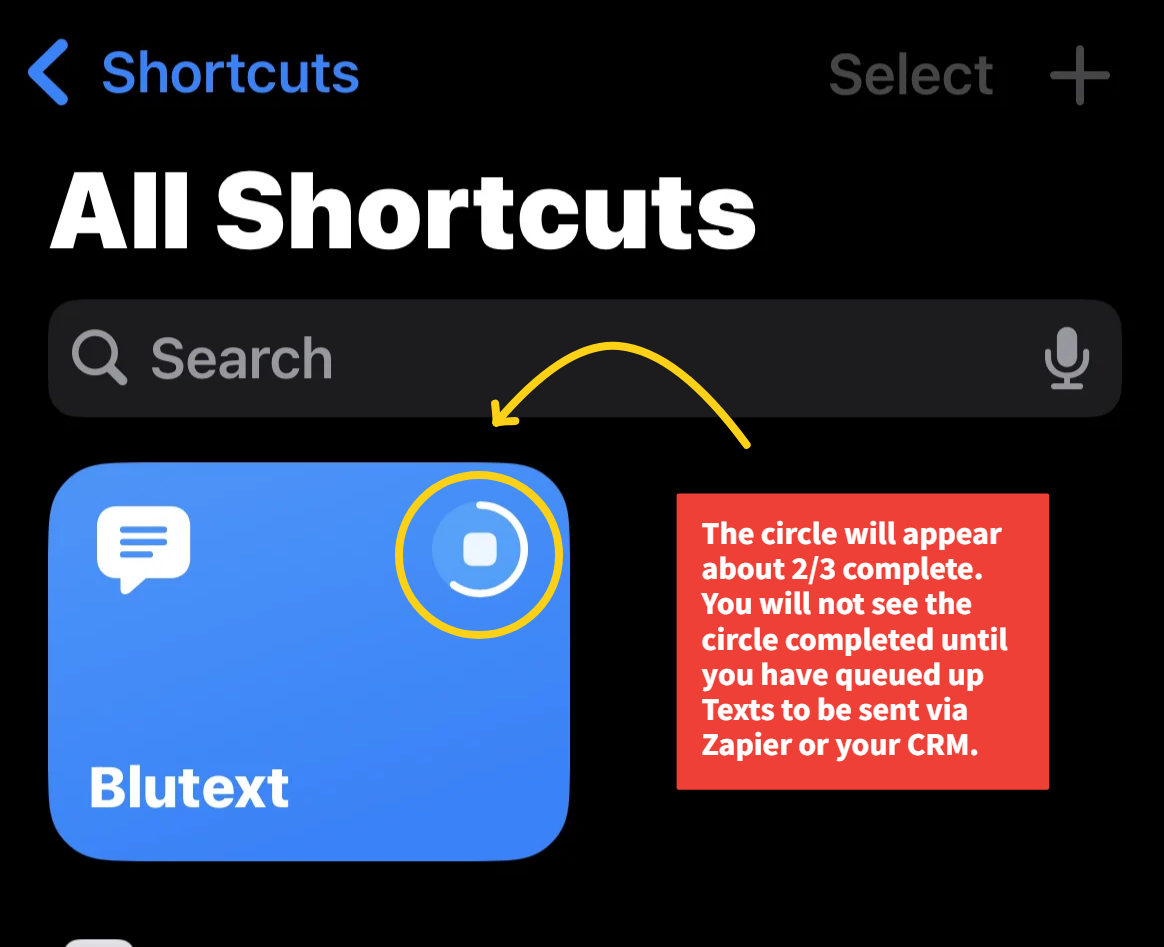
*Note: The Blutext Tile will replace the ellipsis (kebab menu) with an incomplete circle. This indicates that the Blutext Shortcut is awaiting texts from your CRM or Zapier. You will set those up after this Shortcut is Installed. Proceed to Step 7.
Step 8 Blutext Automations
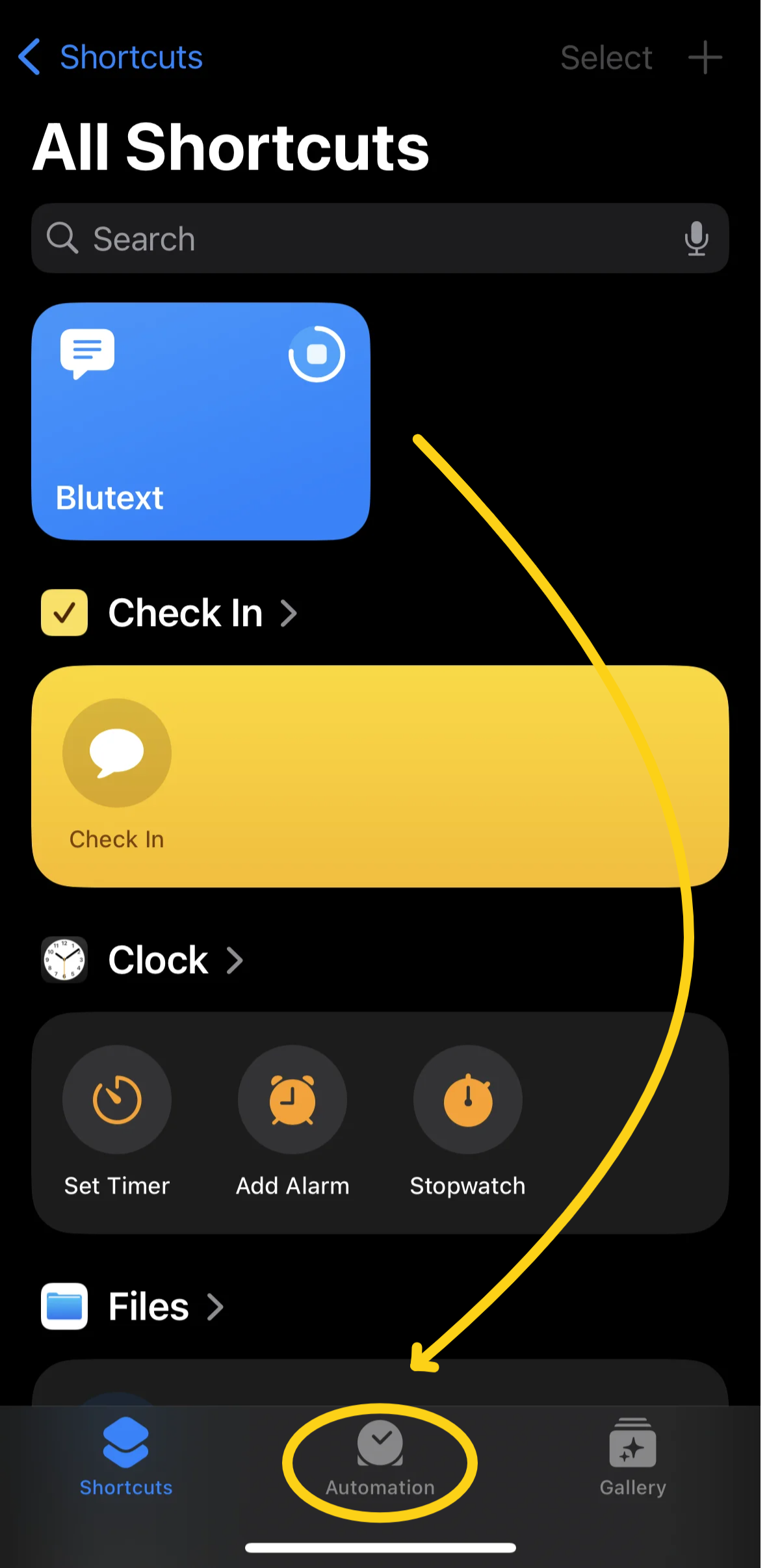
Tap on the "Automations" clock icon located in the middle on the bottom of the "All Shortcuts page."
Step 9 New Automation
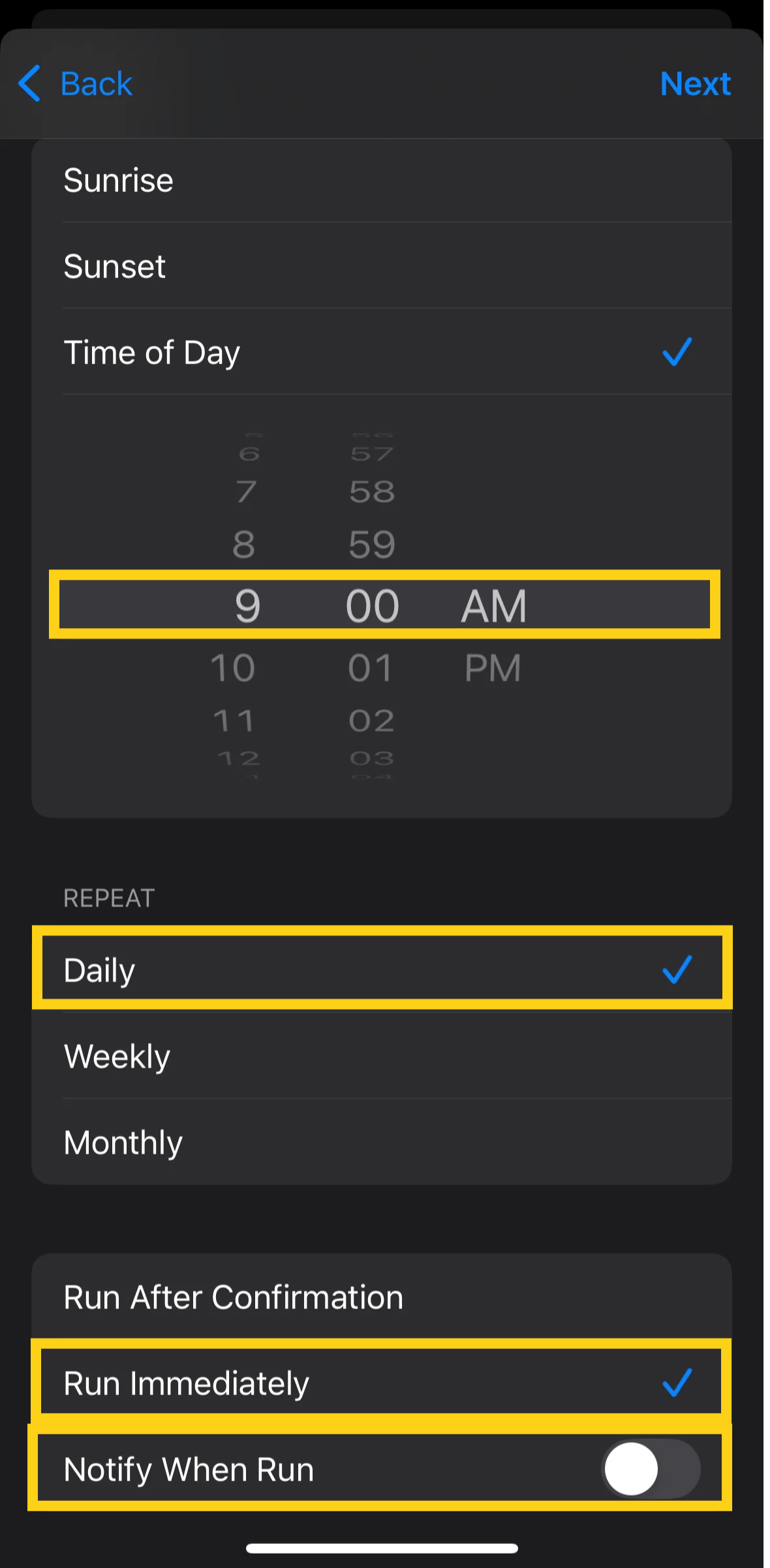
From the "Automation" page, tap the blue "New Automation" button. Next, tap the "Time of Day" so the blue checkmark is applied.
Set the "Time of Day" to 9:00 AM.
The system will automatically run from 9:00 AM - 7:00 PM (10 hour window.)
Tap "Daily" to select and add the blue checkmark.
Tap on "Run Immediately" to select that option and add the blue checkmark.
Leave "Notify When Run" toggled off (to the left.)
Tap "Next" at the top right of the screen.
Step 10 Attach Automation
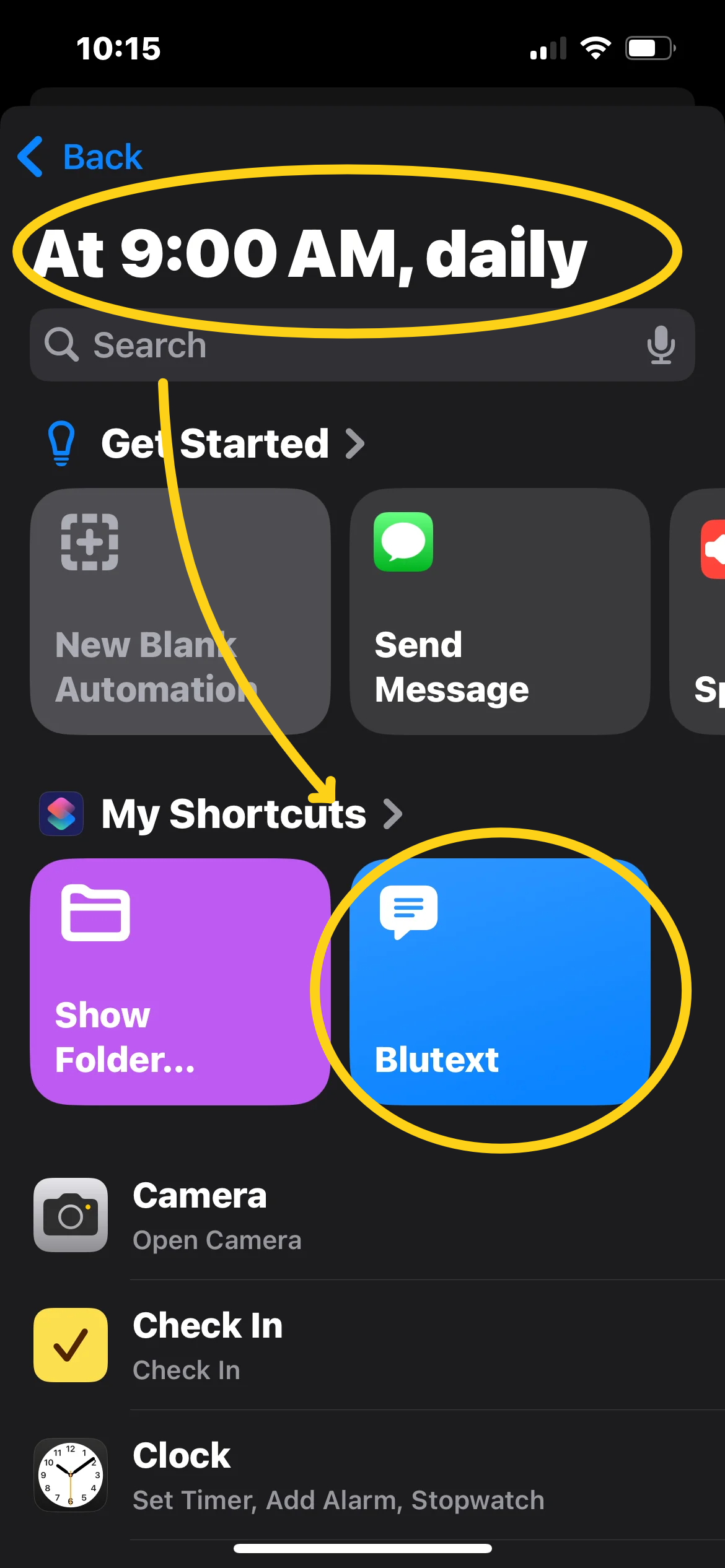
The Installation will update to show you "At 9:00 AM, daily" at the top of the page. Tap the "Blutext tile" to attach the Automation to Blutext.
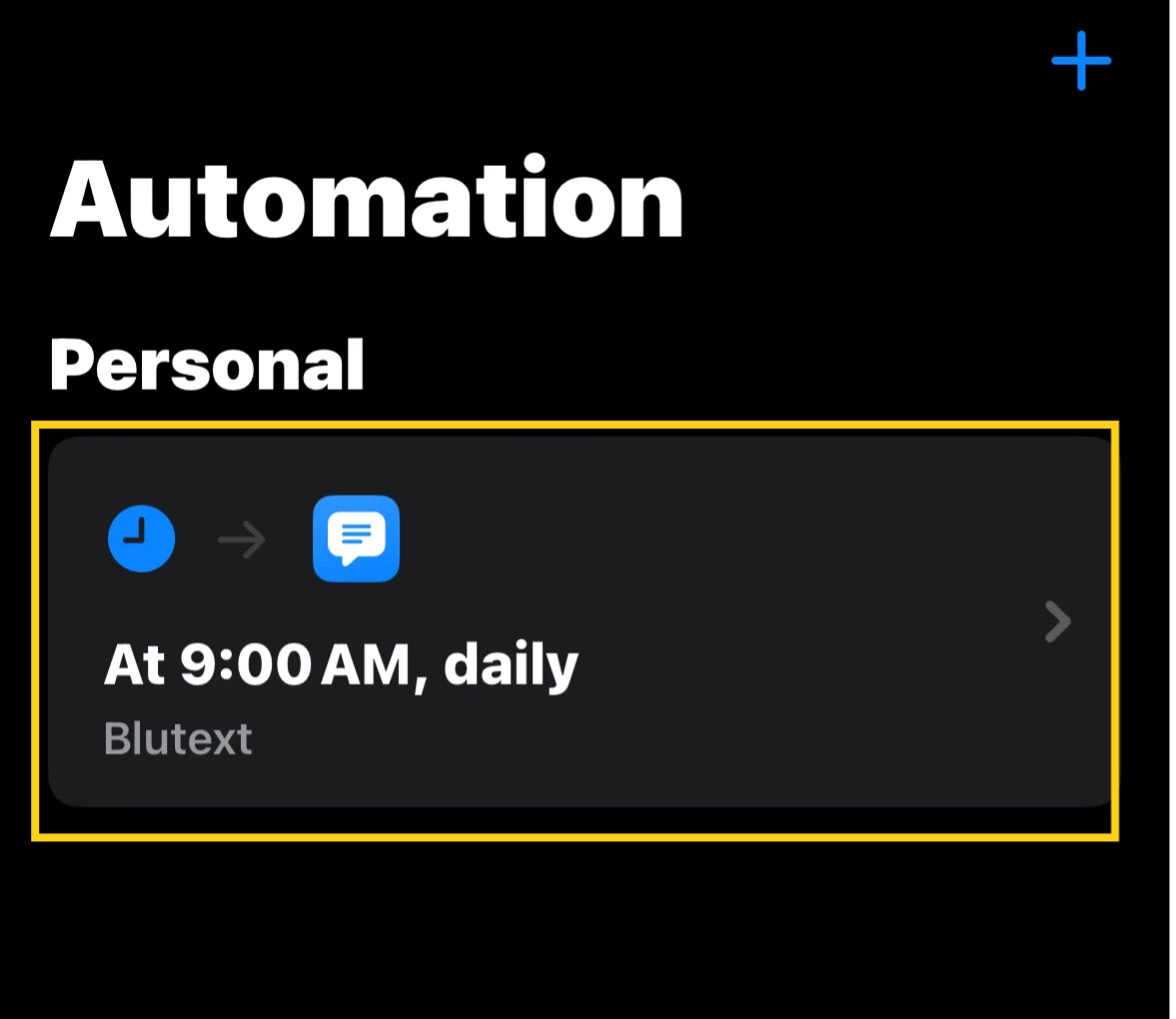
You will now see the Automation tile with Blutext assigned to it.
Step 11 Installation Complete
Congratulations! You've successfully installed Blutext on your iPhone device. Now you can proceed to create and connect text triggers from Zapier and/or your CRM.
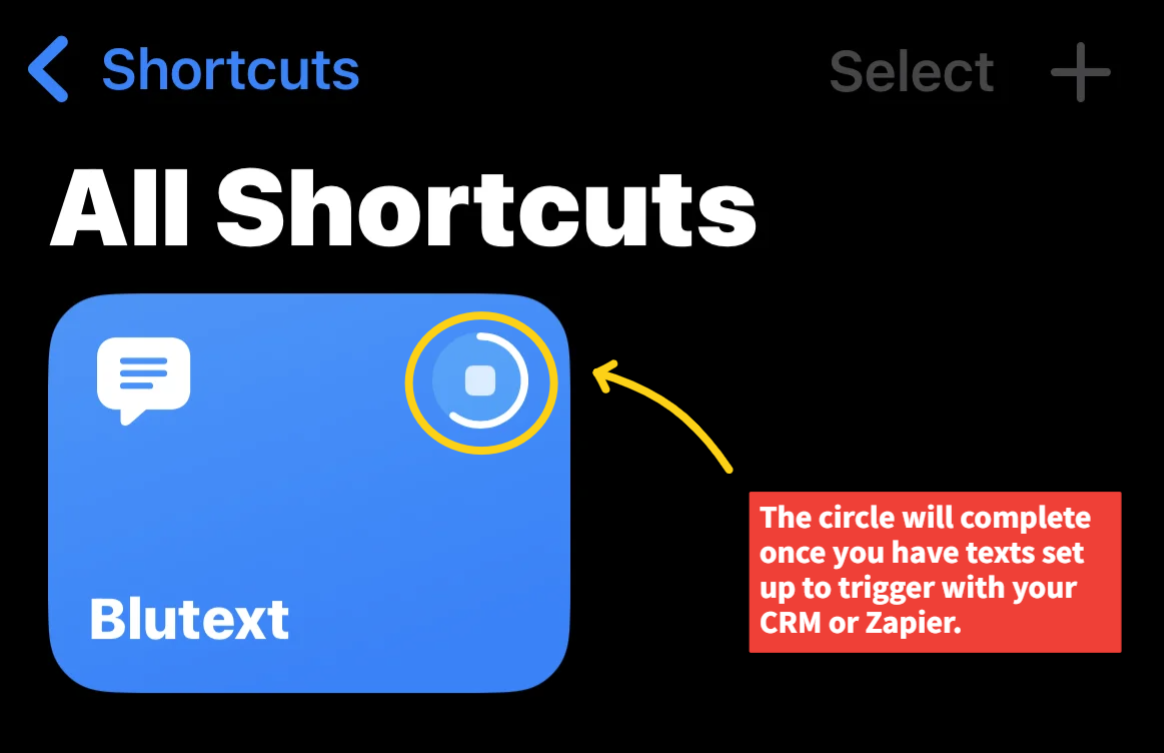
Remember, the Blutext Tile will show an incomplete circle until you have text triggers created to execute.
Blutext & iPhone FAQS
"Your Blutext API Keys - Ready to Use! 🚀?" Email
When you sign up for the trial, the system make take up to a minute to process the new account and send out your email.
The subject is "Your Blutext API Keys - Ready to Use! 🚀"
*Note: Although unlikely, it could be sorted into your spam folder based on your email provider.
Why do I need the "Shortcuts" app?
Shortcuts is the native automation app on iOS, it comes standard with most iOS devices today. In the chance you don't have it you will need to download it from the app store.
What is the permission I have to allow during setup?
This permission is to allow Blutext to access your phone's messaging program to queue messages, as directed by your connected campaign.
Why set the automation to only run from 9AM-7PM?
We also have a 100 message limit in place. These proactive parameters are in place so that your phone is much less considered by providers as a possible spammer.
The Shortcut is set, am I all good?
Indeed! Now you can use your Blutext ID as an API key to start connecting with your CRMs, using programs such as Zapier. Once a text is triggered to be sent by Blutext, it will be prompted to be sent by your phone within approximately 10 minutes of the send time.
Can I See Text Replies In My CRM?
You will need to manually log the conversation in your CRM, as Blutext only initiates outbound messages at this time.
iPhone Texting to Android Best Practice
To ensure successful messaging to Android devices, adjust two settings on your iPhone.
Send As Text Message
Open iPhone settings and scroll to \"Send as Text Message\" to toggle it on (it will turn green.)
Turn Off iPhone RCS Messaging
Open iPhone Settings, tap \"Apps,\" then select Messages. Tap RCS Messaging, then toggle it to the left (it will turn gray).
Need help? Chat with us or contact support@blutext.com.