
🏢Organization Navigation
🏢 Workspace
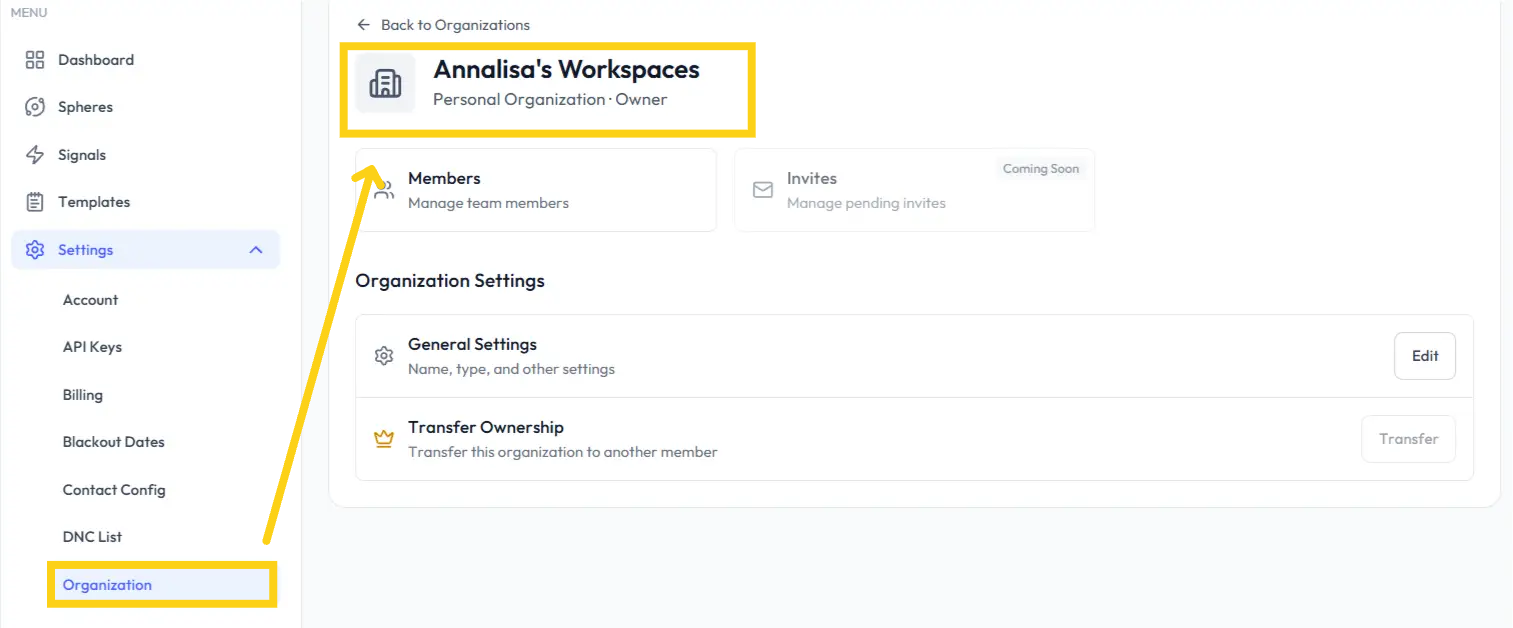
Click "Organization" in the left settings menu to access your Personal Workspace in the Blutext app, where you can see your name and status within the organization—e.g., the user labeled as "Owner."
Here, you can:
👥 Manage members
✉️ Invite new users (coming soon)
⚙️ Access general settings
🔄 Transfer account ownership (coming soon)
👥 Members
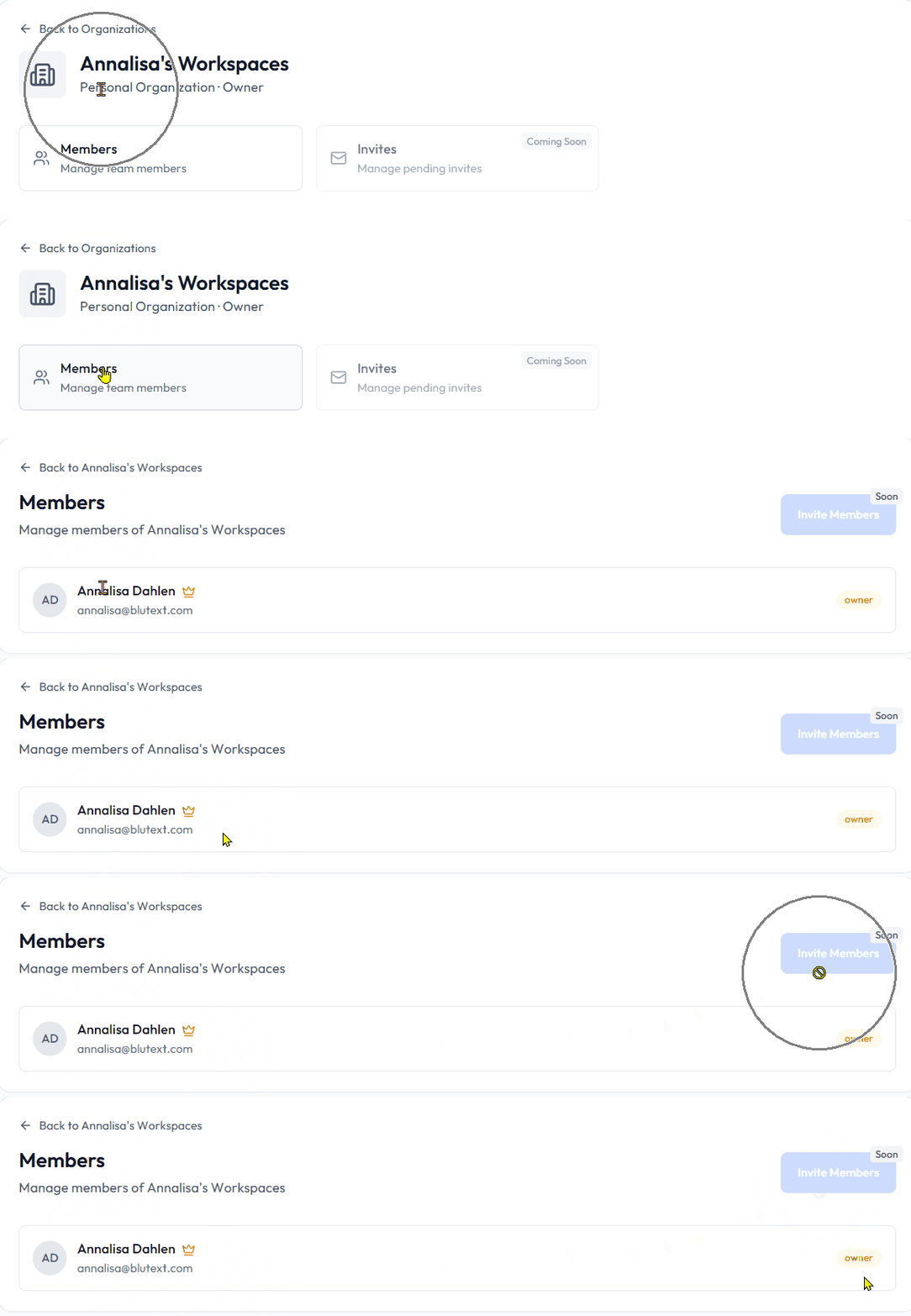
The Members section displays your Organization details, including:
🛠️ Team member management
✉️ Option to invite new members (coming soon)
⚙️ Organization Settings
The Organization Settings section allows you to:
🛠️ Access your Workspace General Settings
🔄 Use tools for transferring ownership (coming soon)
⚙️ General Settings
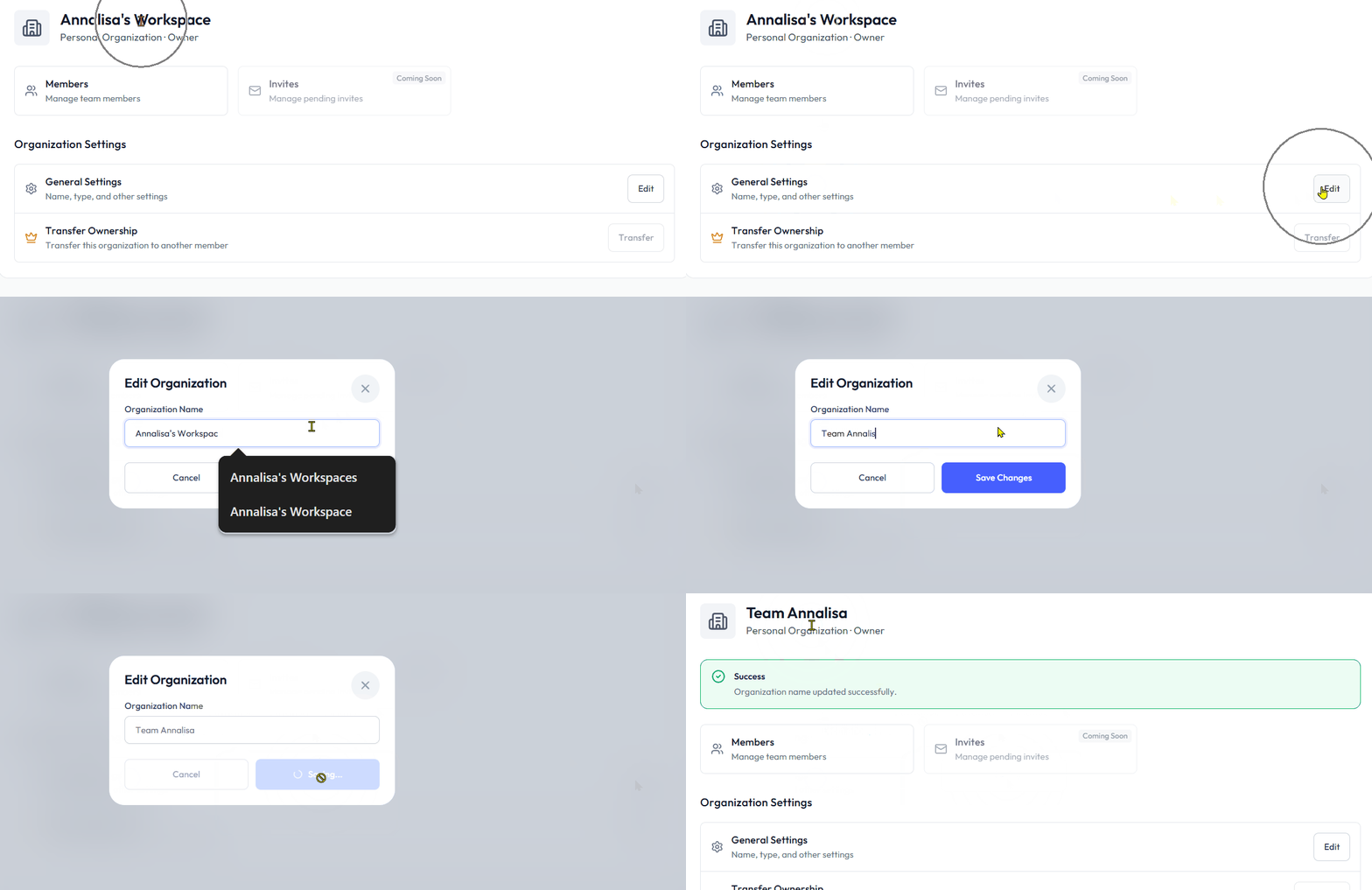
The General Settings section allows you to update the Workplace name. Options for selecting type and other settings will be available soon.
✏️ To update the Workplace name:
Click "Edit" on the General Settings tile.
Update the name in the pop-up tile.
Click the 🔵 "Save Changes" button.
🔄 Transfer Ownership
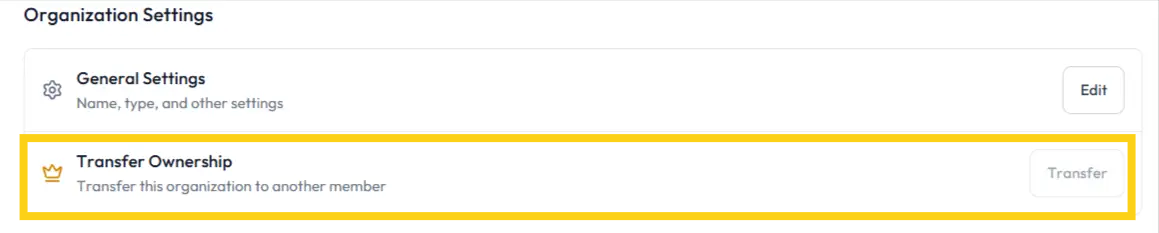
The Transfer Ownership feature will soon allow you to transfer ownership of the Blutext Dashboard to another user.
Need help? Contact us at support@blutext.com or chat with us at the bottom right of our blutext.com website or knowledge base.