
📇 Contact Config Navigation
The Contact Config settings include:
🛡️ DNC compliance settings
🔗 Contact Configuration for Merge Fields
🧹 Deduplication Rules
🛡️ DNC Compliance
By default, DNC Compliance is enabled for Blutext (toggle 👉 slide to the right), controlling how Do Not Call (DNC) lists are checked for contacts and messages in your Blutext Dashboard.
✅ If you decide not to send messages to a contact, make sure to move their number to the DNC List—this keeps you compliant and avoids any unwanted messages. 📋
❌ To turn DNC Compliance off, click the toggle to slide it to the left.
*Note: The built-in TCPA, likely litigators, bad numbers, and landlines are always blocked regardless of this setting.

🔗 Contact Configuration
Contact Configuration allows you to define Merge Fields for imported or manually created contacts, including:
📌 Default system fields
🗂️ Core fields
✏️ Custom fields
You can toggle each field on (👉 right) or off (👈 left) to specify which fields to display and which are required.
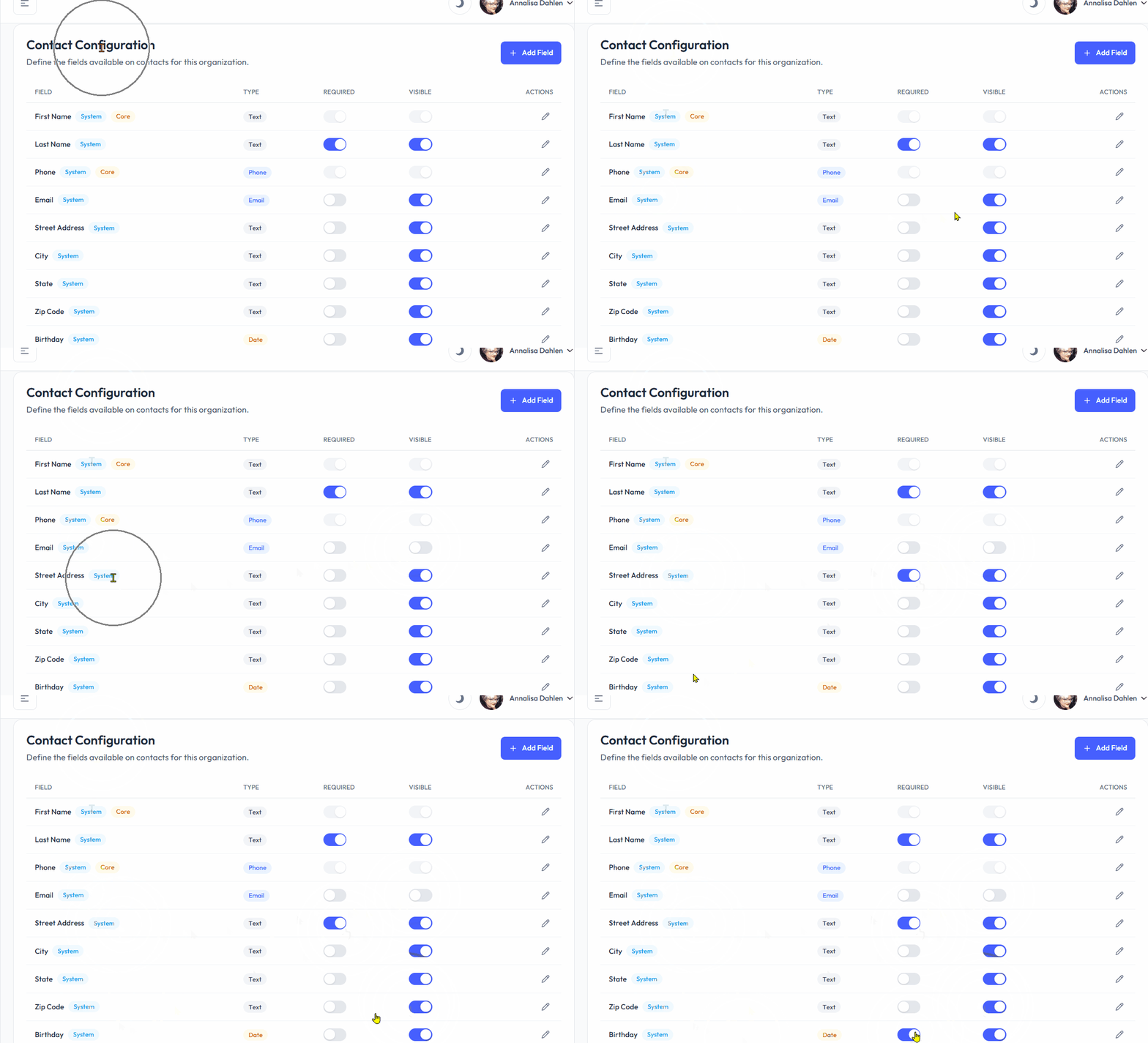
Default System vs Core Fields
Default System Fields (by Blutext) | First Name, Last Name, Phone, Email, Street Address, City, State, Zip Code, Birthday, Closing Date. |
Core Fields (Required by Blutext) | First Name, Phone |
Custom Configuration Field | You can create your own Contact Fields as well. You can learn about that process below. |
How to Add a Contact Configuration Field
Step 1
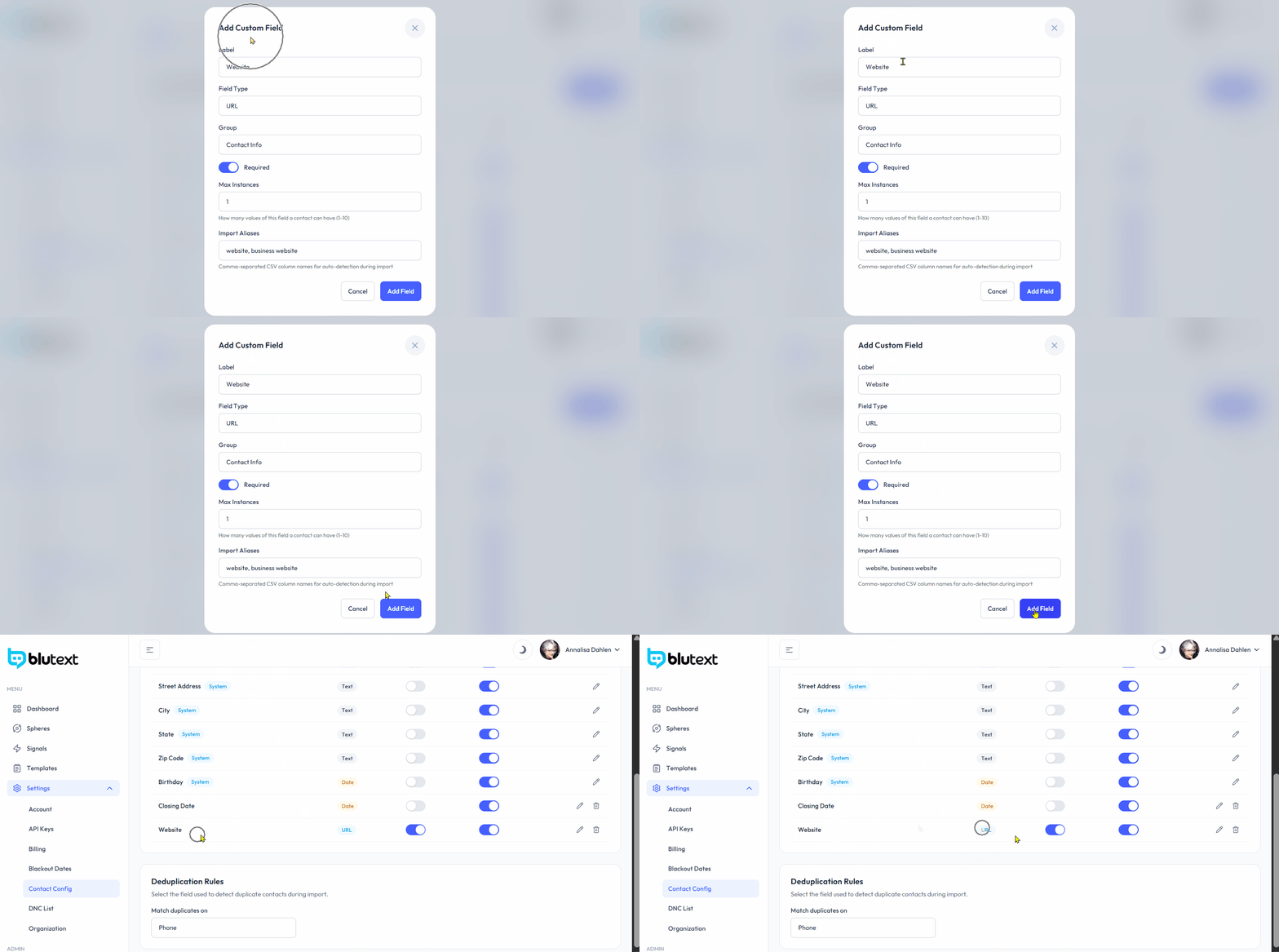
🔵 Click the "+Add Field" button at the top right of the Contact Configuration section to open the "Add a Custom Field" pop-up.

Step 2
Fill out each section of the Add a Custom Field pop-up:
Label
🔗 Define the relationship of this field to your contacts. For example, if adding a Website, name the field "Website" 🌐 and include the contact’s website link during import or manual entry.

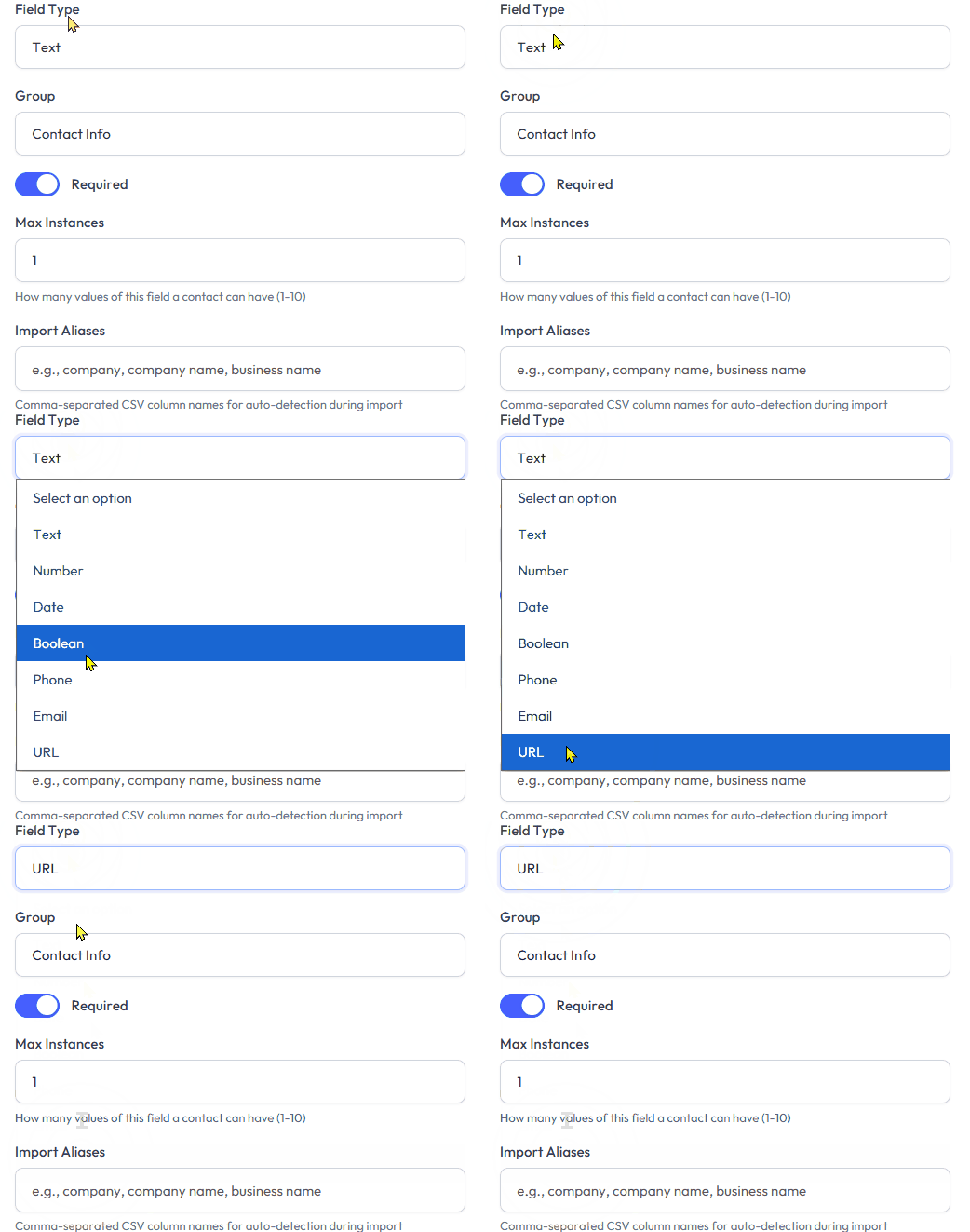
Field Type
⬇️ Click the dropdown menu and select the matching Field type.
🌐 In this example, select "URL" because the Label was defined as "Website."
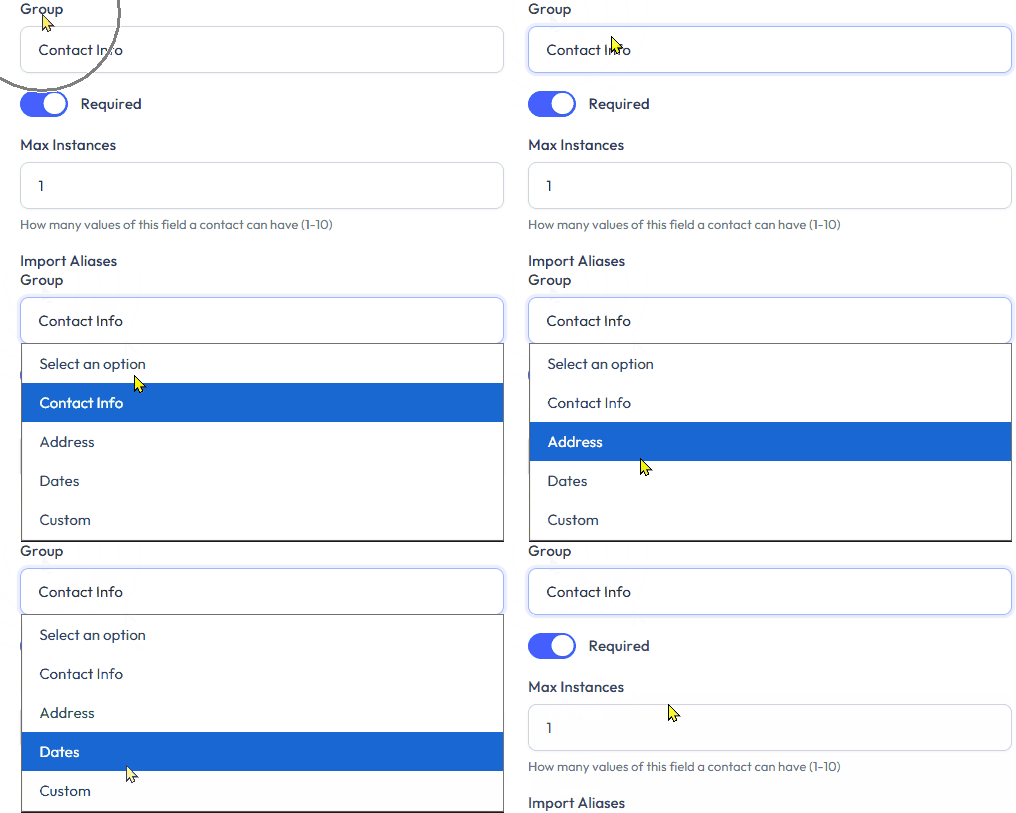
Group
📂 Select the group of fields to which you want to add the new field.
🌐 In this case, choose "Contact Info" for the "Website" field.
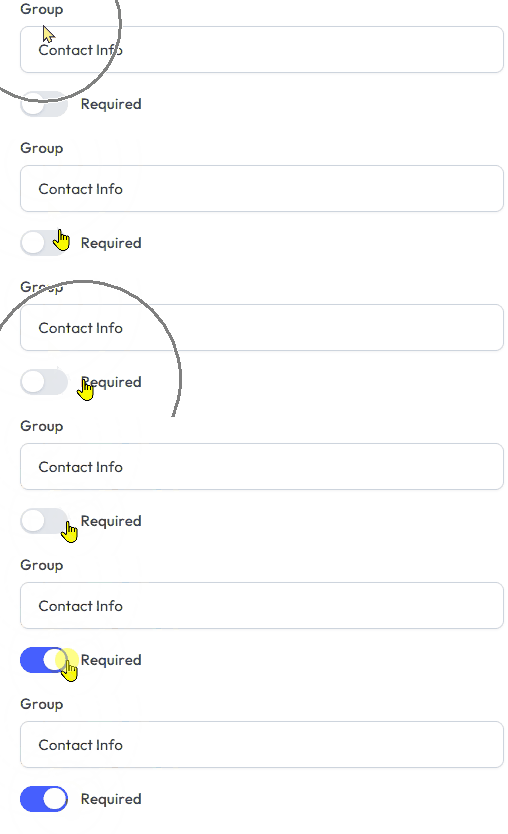
Required Toggle
🎚️ Below the "Group" selection, a toggle allows you to make the field required for import or manual contact creation:
👉 Slide right to enable the requirement
👈 Slide left to disable the requirement
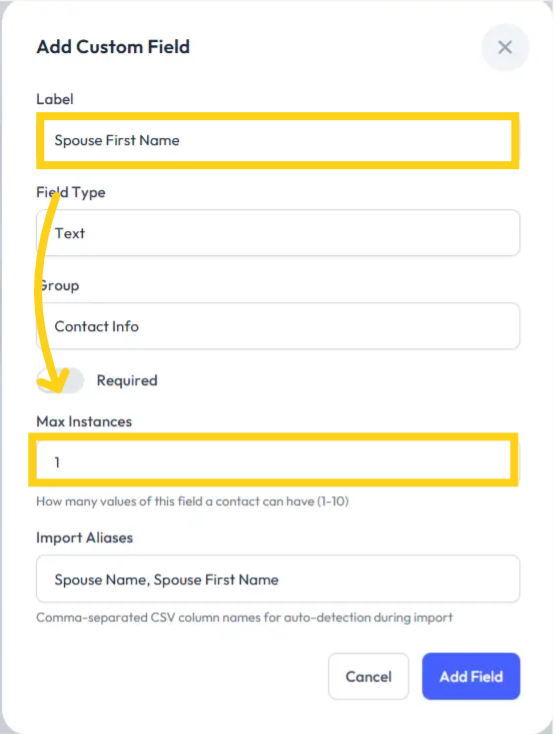
🔢 Max Instances
The Max Instances field indicates that the system should have only one instance of this data value.
💡 For example, if you add a Spouse field, it should appear only once per contact profile.
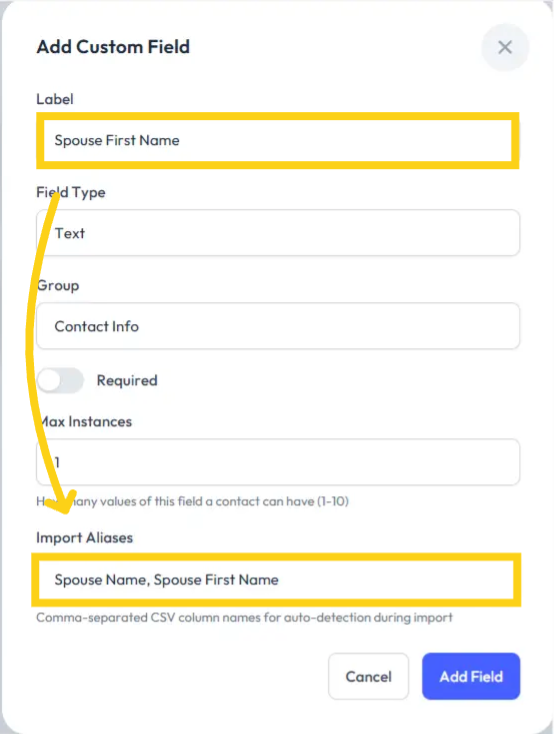
📥 Import Aliases
Import Aliases are the column titles associated with a Contact Field during CSV import.
💡 For example, if you create a Spouse field, the Import Aliases could be:
Spouse
Spouse First Name
Spouse Last Name
Step 3
🔵 Click the "Add Field" button at the bottom right of the "Add Custom Field" pop-up.
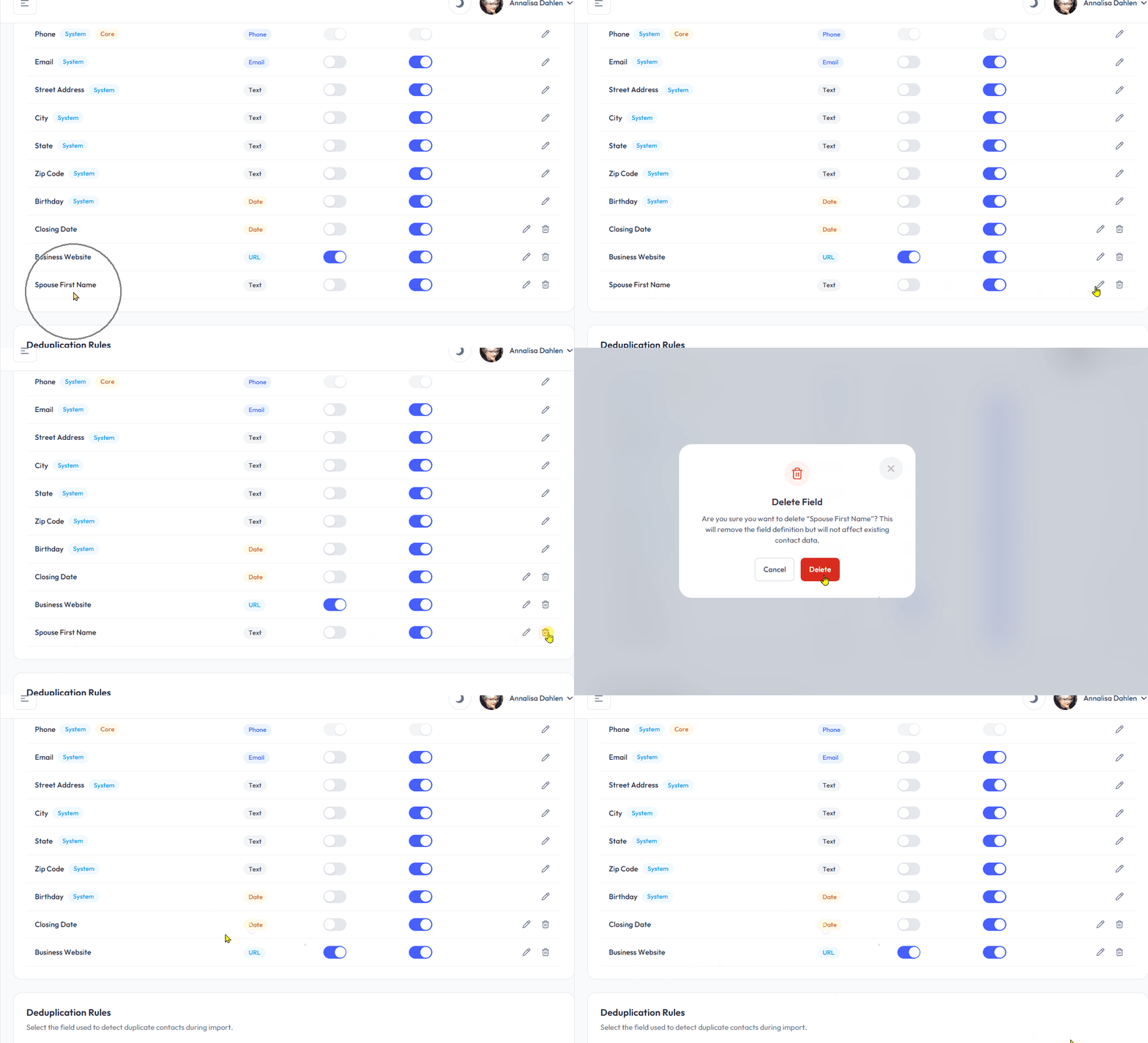
✏️ How to Edit a Contact Configuration Field
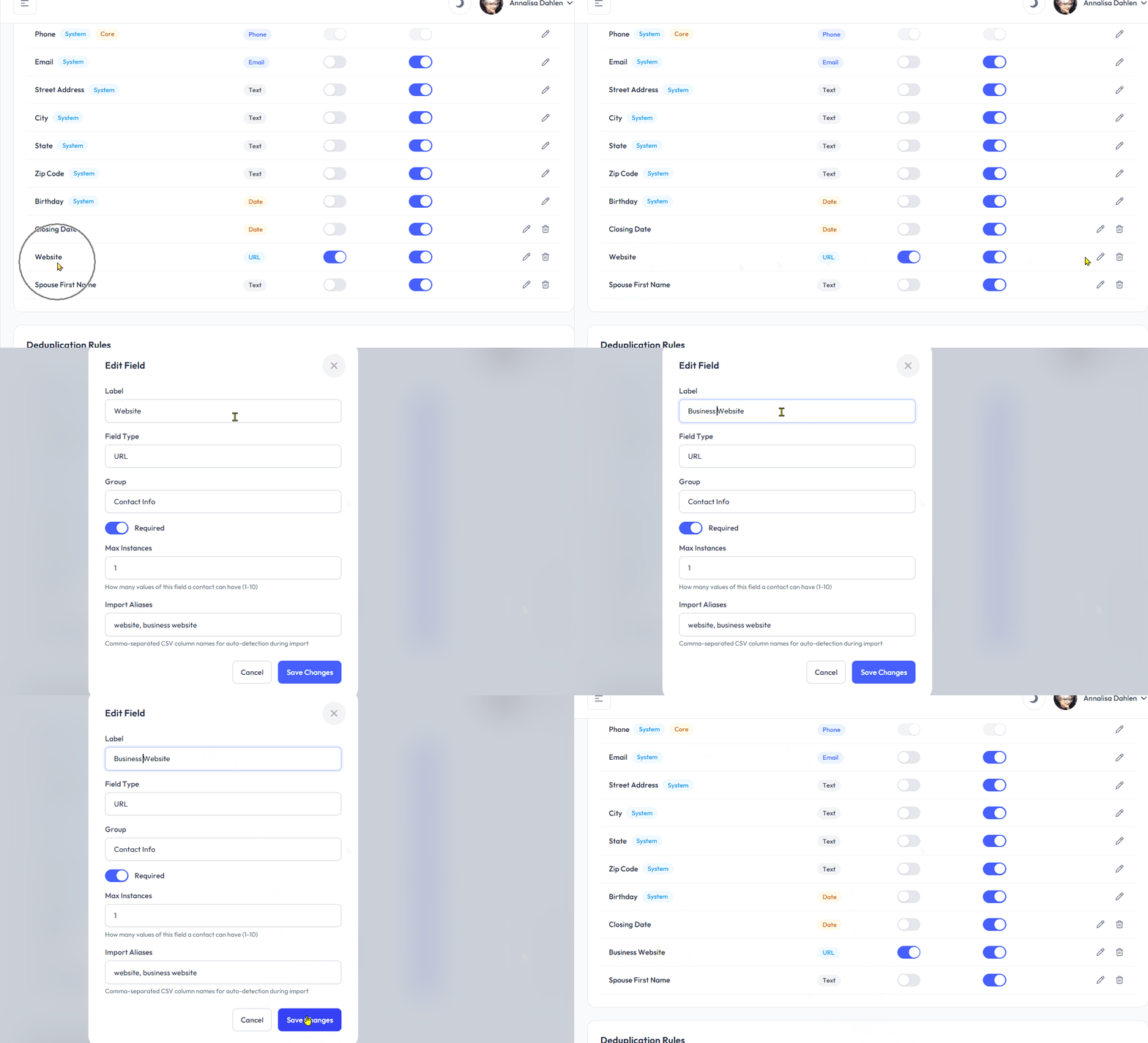
Locate the row with the pencil icon for the field you wish to edit.
Click the pencil icon ✏️.
Confirm by clicking the 🔵 "Save Changes" button.
⚠️ Note: Editing a Contact Config field updates all related fields in associated contact records. Support cannot revert changes to the original.
🗑️ How to Delete a Contact Configuration Field
Locate the row with the trashcan icon 🗑️ for the field you wish to remove.
Click the trashcan icon.
Confirm by clicking the 🔴 "Delete" button.
⚠️ Note: Deleting a Contact Config field removes all related data from associated contact records. Support cannot recover this data.
🧹 Deduplication Rules
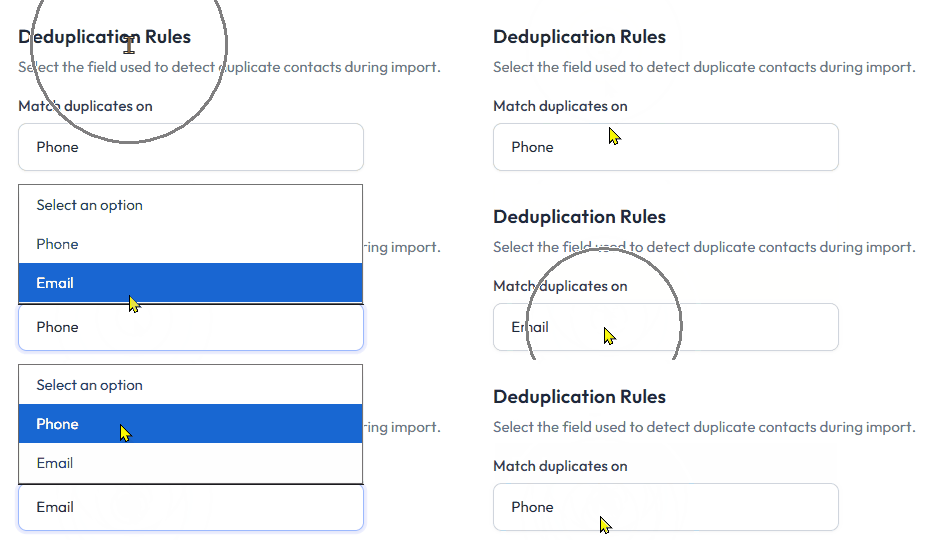
Deduplication rules let you select one of two options for the system to review and ignore duplicate emails or phone numbers during contact import or manual creation.
⬇️ Use the dropdown menu to choose either:
📞 Phone
📧 Email
Need help? Contact us at support@blutext.com or chat with us at the bottom right of our blutext.com website or knowledge base.