
📂 Templates Navigation
The Templates tab on the left side of the Dashboard lets you:
💬 Use Default Templates or create/customize your own "Signal" text templates
📂 Organize templates into Collections for easy access
🔍 Use keyword searches to quickly find specific templates
⚠️ Note: To create a Message Template from scratch, you must first create a Template Collection.
Default Template Collections
The Default Template Collections provided by Blutext are designed for automated, consistent outreach to:
🤝 Nurture relationships with past clients and your Sphere of Influence
⏱️ Eliminate the need for a CRM or manual effort
👀 Maintain visibility by sending messages at key moments
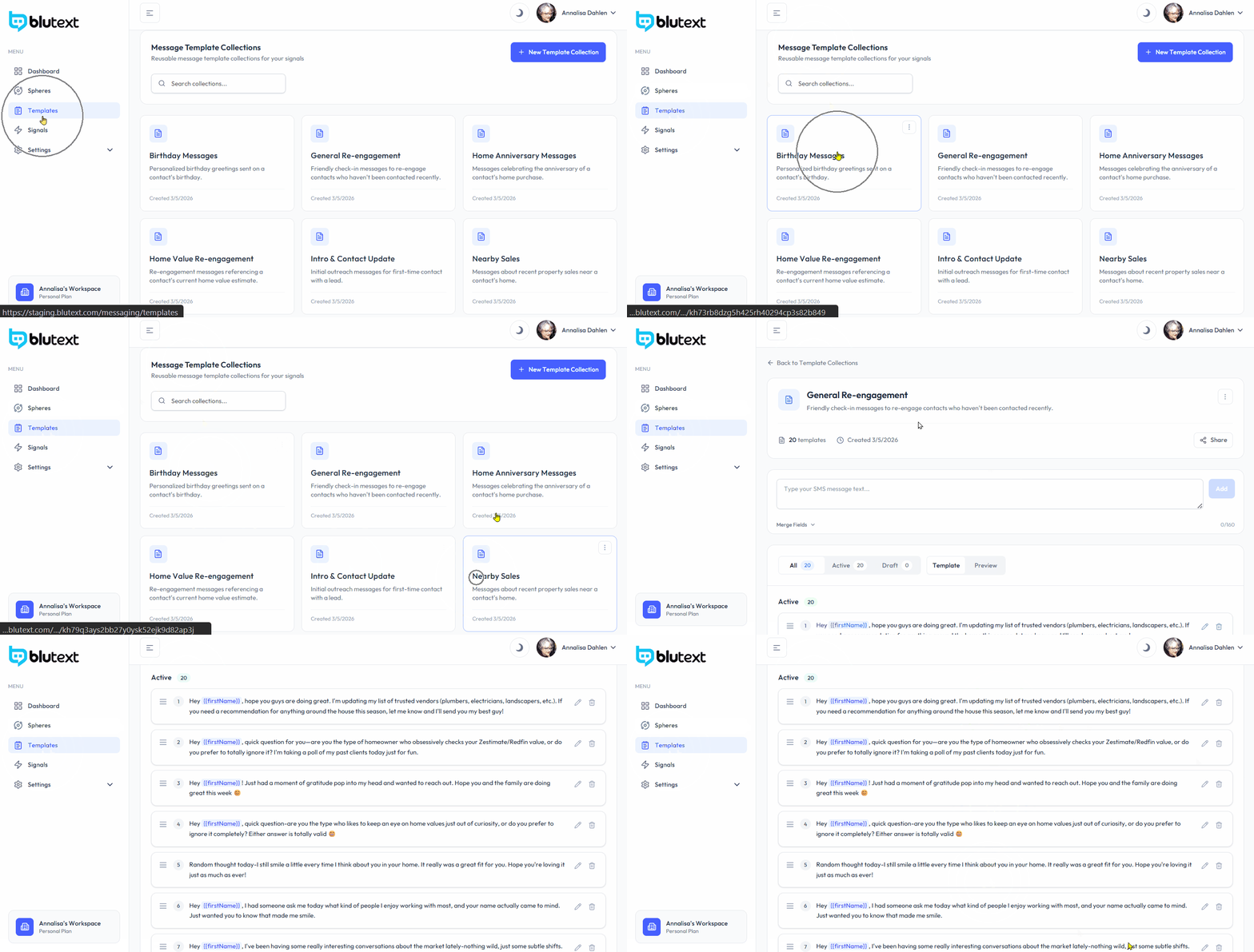
⬇️ Click an option below to open your Blutext Dashboard and review the default Message Template Collections.
Includes 10 templates for personalized birthday greetings that trigger annually when a contact’s birthday is added.
Includes 20 templates of friendly check-in messages to re-engage contacts who haven’t been contacted recently.
Includes 10 templates celebrating a contact’s home purchase anniversary, triggered annually only if the buyer’s closing date is added.
Includes 10 re-engagement message templates referencing a contact’s current home value estimate, triggered only if the property address is included in the contact’s details.
Includes 12 message templates designed for initial outreach when first using Blutext for your Sphere of Influence.
Includes 10 message templates about recent property sales near a contact’s home, triggered only if the property address is included in the contact’s details.
How to Create a Template Collection
Step 1 Create New Template Collection
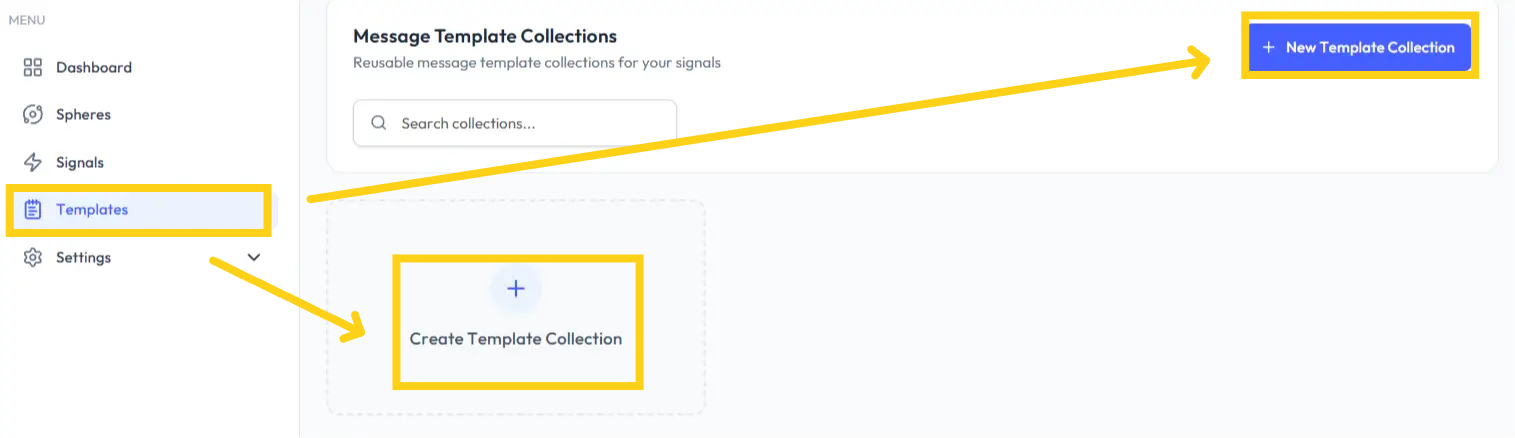
Click "Templates" on the left-hand side of the Dashboard. Click the 🔵 "+New Template Collection" button at the top right, or click the "Create Template Collection" tile.
Step 2 Name New Collection
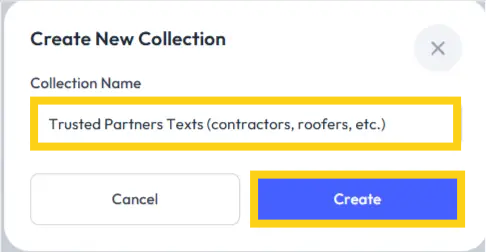
Add a "Collection Name" to the pop-up. Click the 🔵 "Create" button.
Step 3 Review Template Collection
The page will update to display the Template Collection you just created.
You can view:
📝 The number of templates in the Collection
📅 The creation date
✅ How many are Active or ⚪ Draft
🔍 Specific templates
👀 A preview of how they appear to the recipient
💡 Whether a Message Template is in Draft or Active, you can review it in:
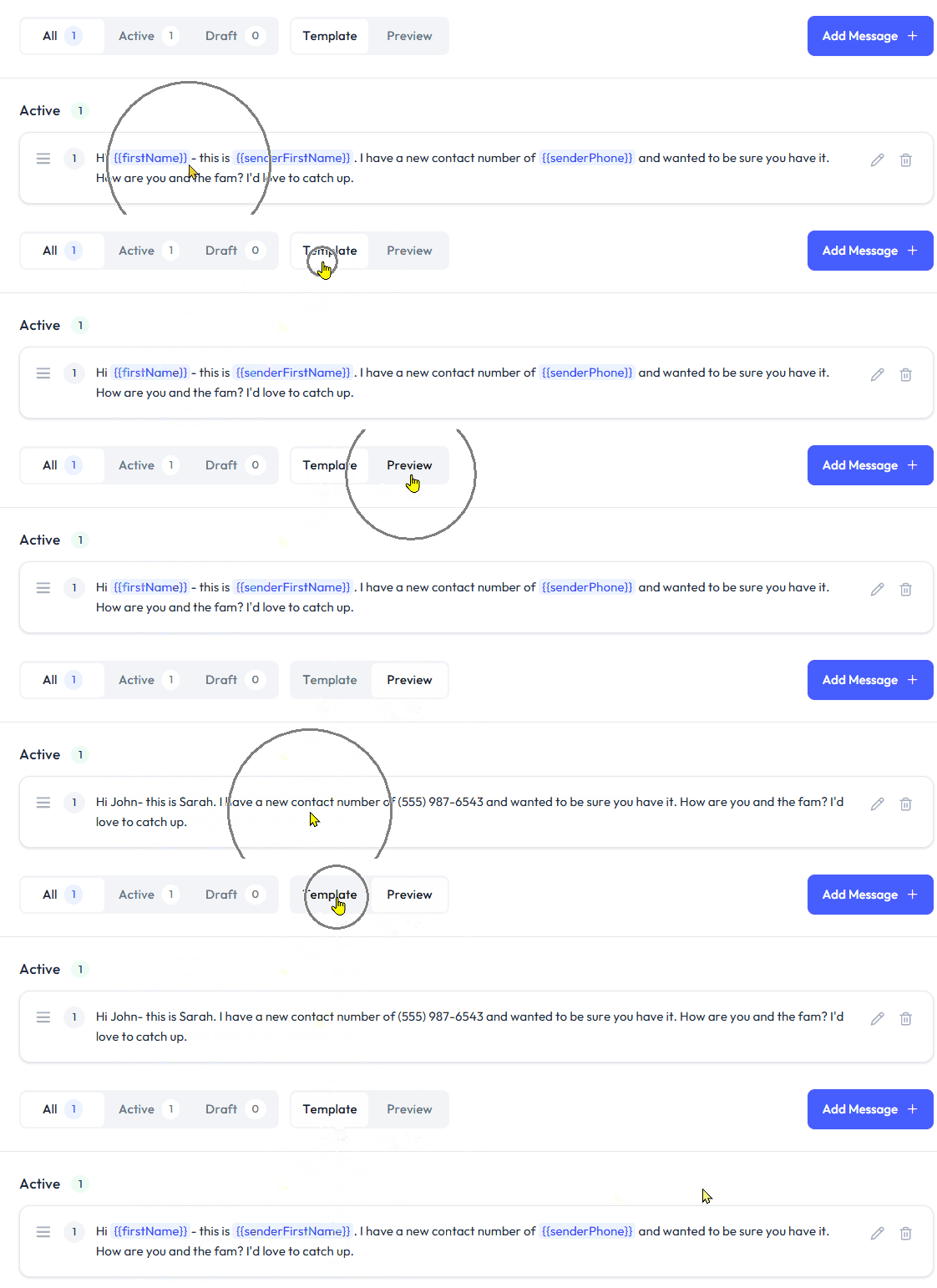
🖋️ Template form – with Merge Fields (aka Variables, Tokens, or Merge Tags) for first name, last name, phone number, etc.
👁️ Preview – as it will appear to the recipient
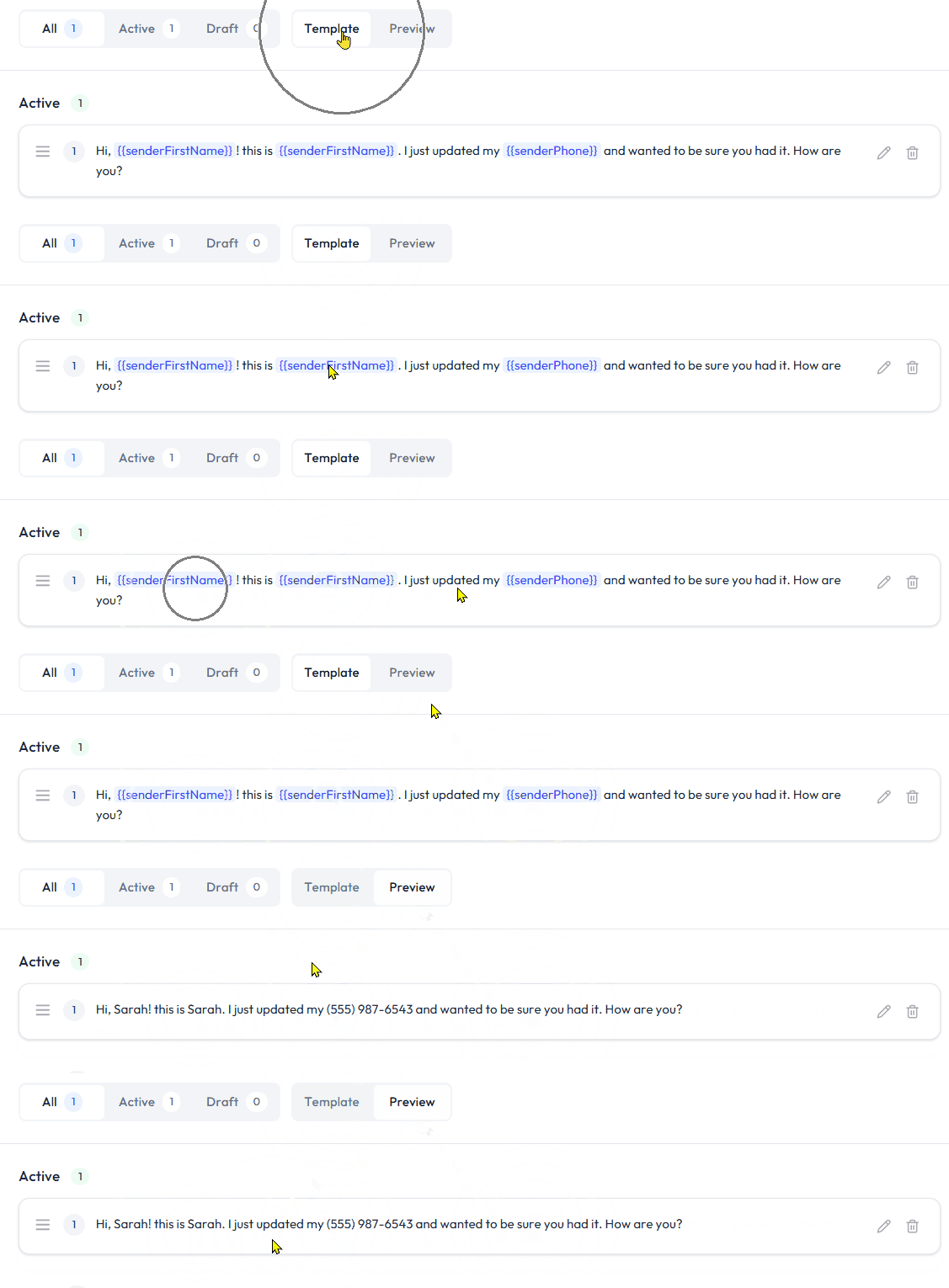
Just locate the template you want to review, and click the "Template" or "Preview" option.
Template or Preview
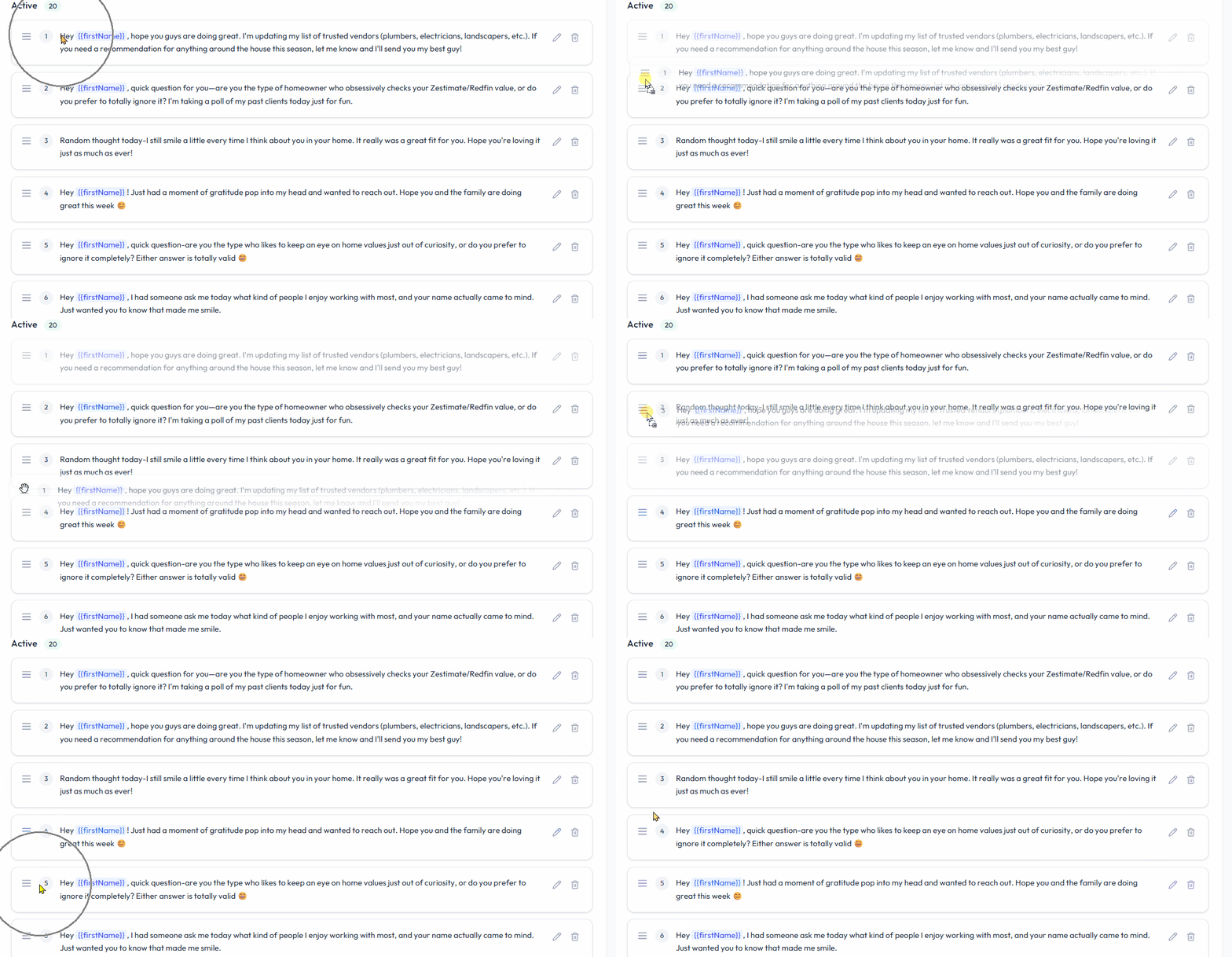
How to Reorder Template Collection Messages
Want to change the order your messages are sent to contacts? 📲✨
Simply click and drag a message up or down the list, then release it exactly where you want it to go. Easy as that! 🙌
How to Edit the Template Collection Information
Hover over the top right of the name or description. Click the pencil icon 🖉. Make your update, then click outside the area to save ✅.

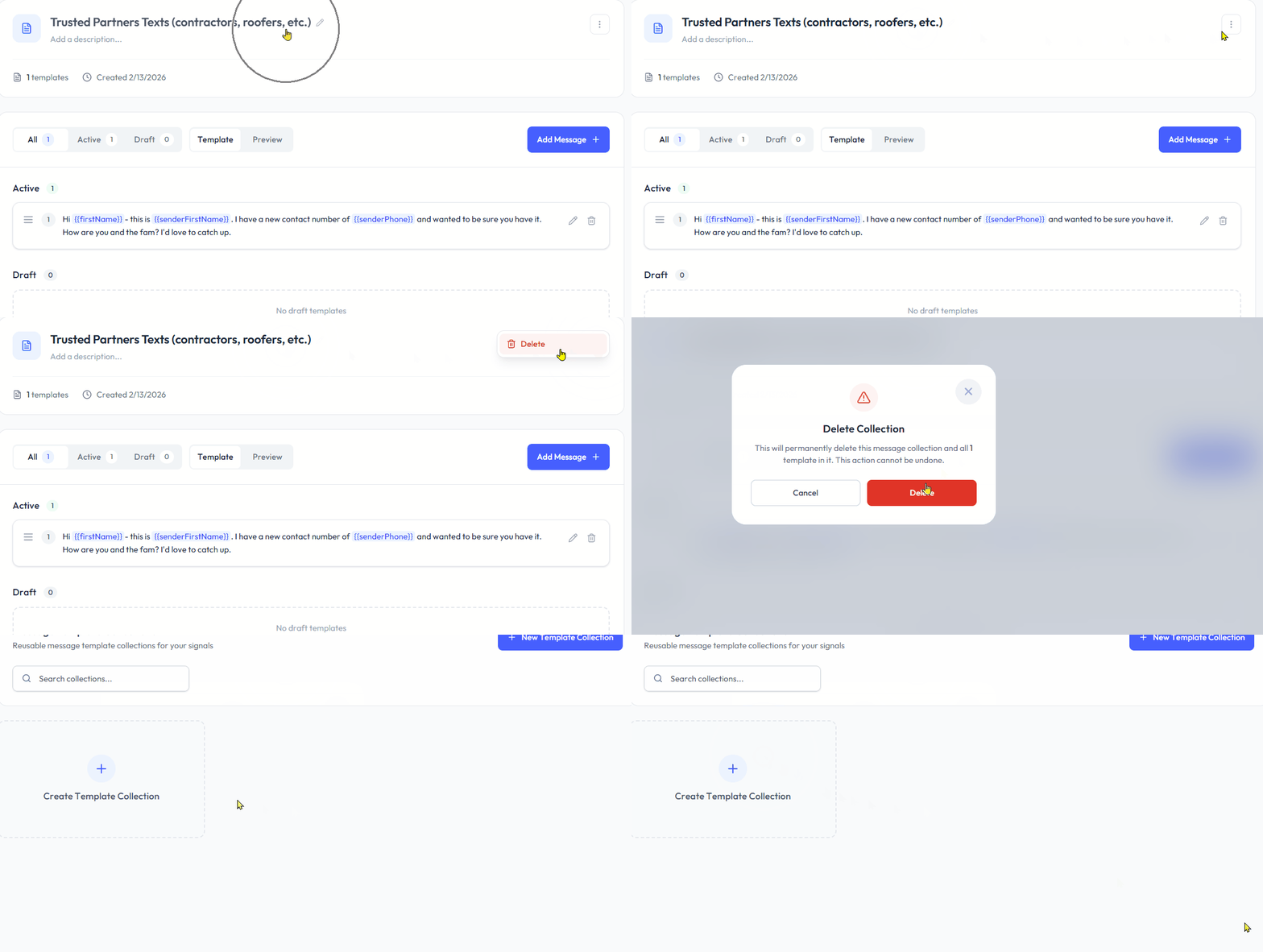
How to Delete a Template Collection
Click to open a Template Collection. Click the three dots ⋮ at the top right of the section. Click "Delete", then click "Delete" again to confirm.
You will be redirected to the Templates page, where you can create a new Template Collection.
⚠️ Note: Deleting a Message Template Collection is a permanent action and cannot be recovered by Support.
How to Create a Message Template
Now that you have created the Template Collection, you can create a Message Template within it.
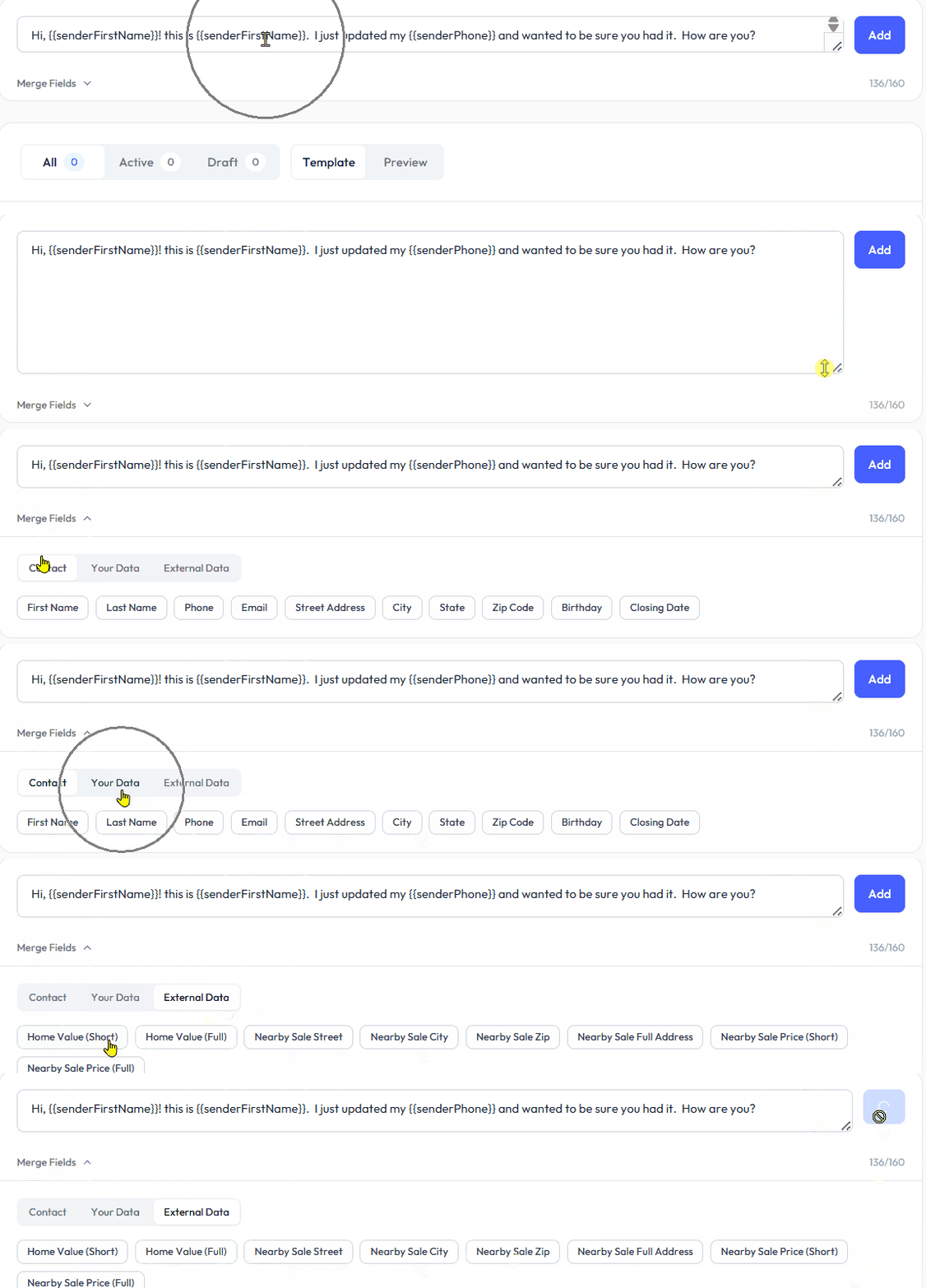
💡 Note: You can drag the bottom right corner of the Message field to enlarge or contract the field.
Step 1 Add Message
Click to open a Template Collection.
Place your cursor into the open field at the top of the Collection page.
Start typing your message.
Click "Merge Fields" to open the menu and automatically fill specific information into your messages.
💡 Merge Fields include
👤 Contact
Contact First Name
Contact Last Name
Contact Number
📂 Your Data
User First Name
User Last Name
🏠 External Data
Home Value (short)
Home Value (long)
Nearby Sale Street
Nearby Sale Zip
Nearby Sale Full Address
Nearby Sale Price (short)
Nearby Sale Price (full)
Step 2 Review Message
Once added, the Message Template will be "Active" ✅ and available for Signals by default.
You can change its status to Draft ⚪ and review it in either:
📝 Template – view with merge fields
👀 Preview – see how it will appear to the recipient
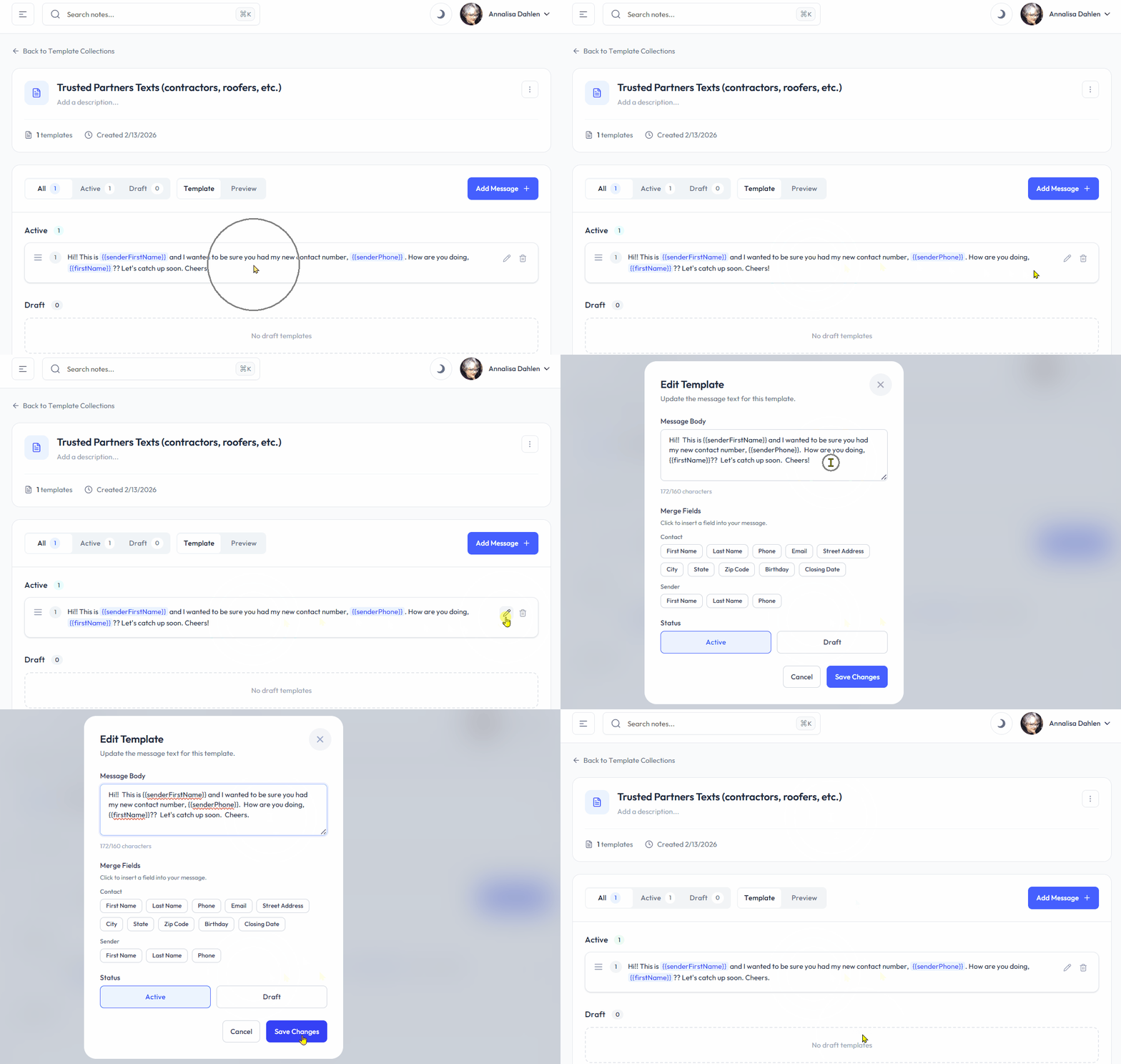
How to Edit a Message Template
Locate the Message Template you want to edit. Click the pencil icon 🖉 at the far right of the Template name.
Make the necessary changes, then click the 🔵 "Save Changes" button.
You will be redirected back to the Message Collection page ✅.
How to Delete a Message Template
Locate the Message Template you want to delete. Click the trashcan icon 🗑️ at the far right of the Template name.
⚠️ Note: This action is immediate and permanent. A deleted Message Template cannot be recovered by Support.

Signals Using This Collection
This section shows the Signals linked to this Template Collection and indicates whether each Message Template is:
⚪ Draft

✅ Active

Need help? Contact us at support@blutext.com or chat with us at the bottom right of our blutext.com website or knowledge base. to