
👤Account Settings Navigation
🌐 Within Sphere Signals, there are different access points to update and review information. These include:
👤 Profile information
🔒 Security
💻 Sessions
Profile Navigation
Account
👤 Access your profile information by clicking your name at the top right of the dashboard or the ⚙️ "Settings" cog icon on the left.
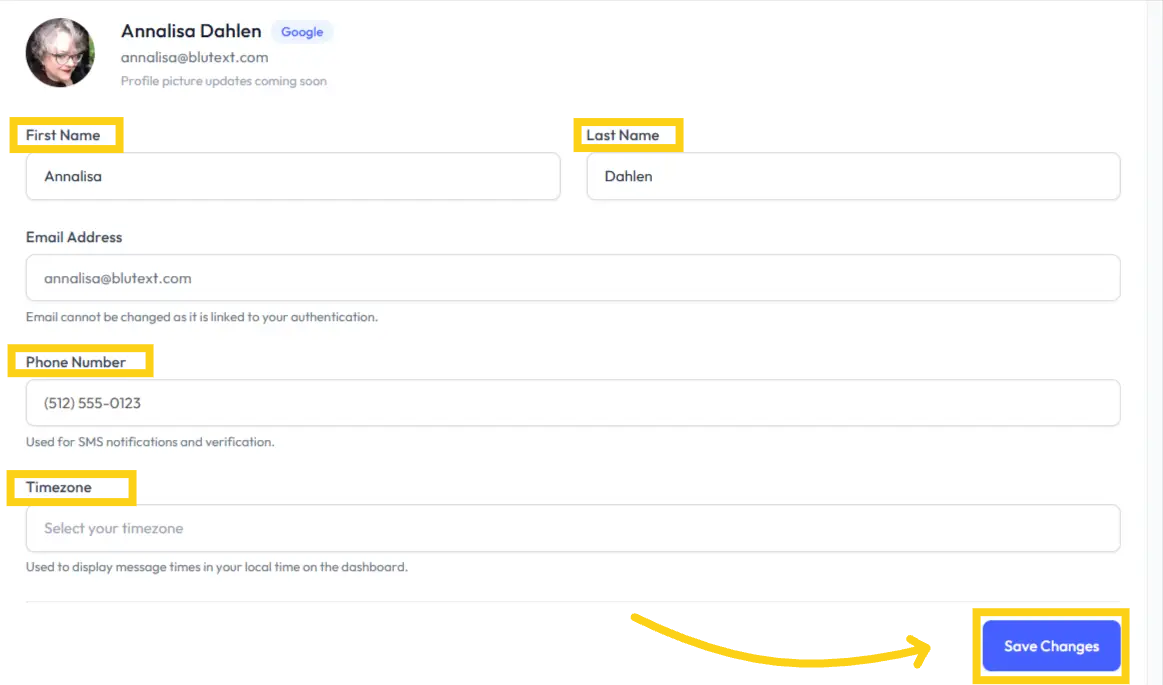
📇 Review and update your contact information, and remember to click the 🔵 "Save Changes" button when finished.
*Note: Review the items highlighted in yellow, as this data is used for the Merge Fields in your message templates.
First Name
Make sure your First Name is correct. It is used in outbound Message Templates as Merge Tokens.
Last Name
Make sure your Last Name is correct. It is used in outbound Message Templates as Merge Tokens.
Email Address
The email address is the one you used to authenticate Sphere Signals by Blutext and cannot be edited.
Phone Number
Make sure your cell phone number is correct. It is used for SMS notifications and verification.
Time Zone
Select a time zone to display message times in your local time on the dashboard.
Security
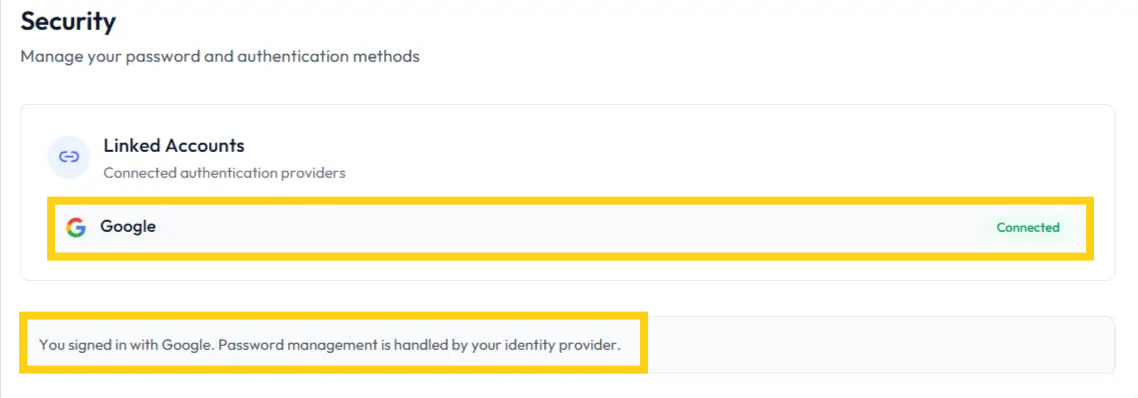
🔒 Security displays the 📧 email address used to create your Blutext Sphere Signals account.
Sessions
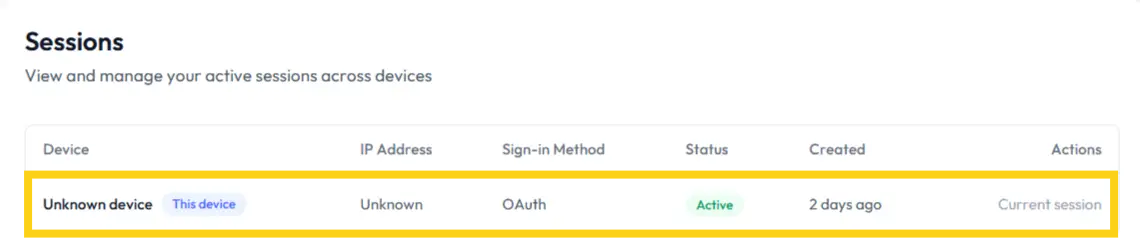
💻 Sessions shows when you first accessed the platform with a device and your 🕒 work sessions while signed in to Sphere Signals by Blutext.
Need help? Contact us at support@blutext.com or chat with us at the bottom right of our blutext.com website or knowledge base.